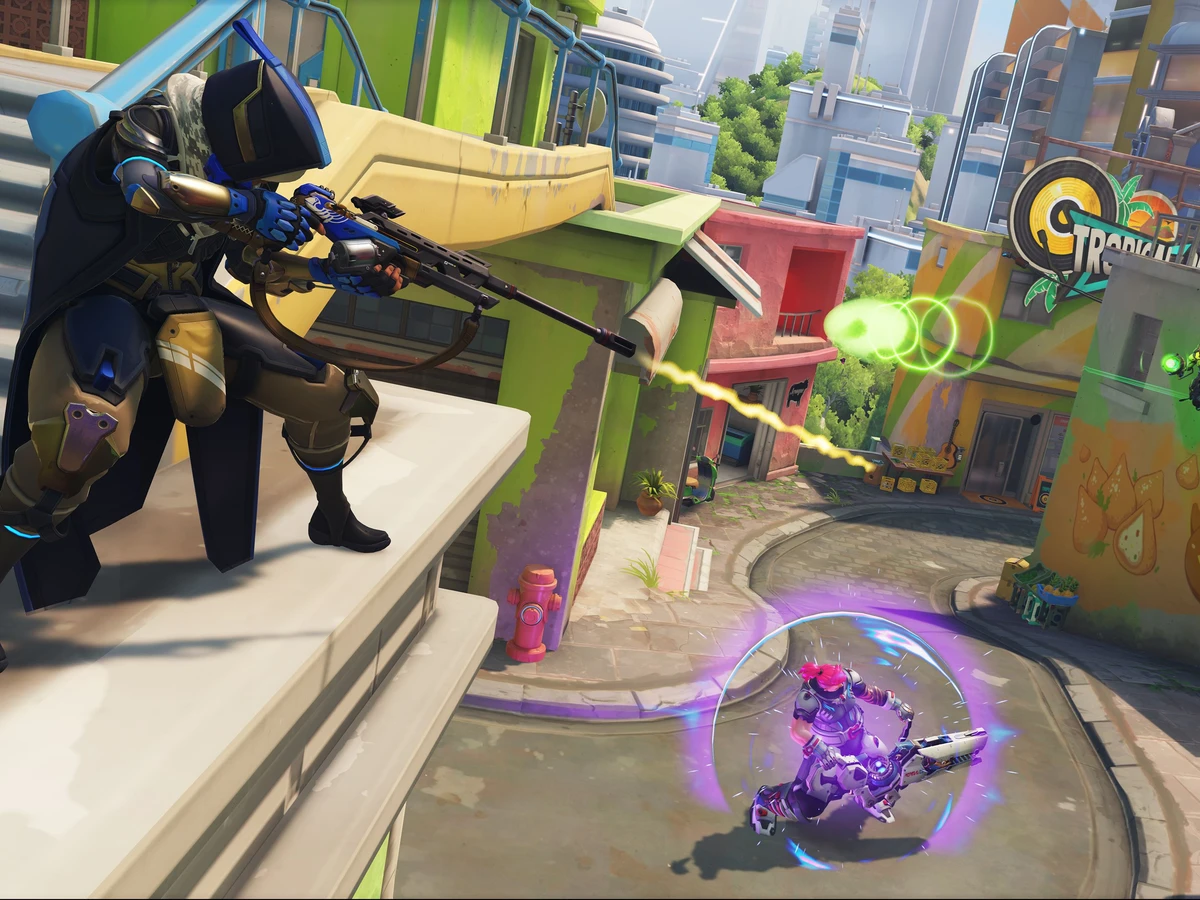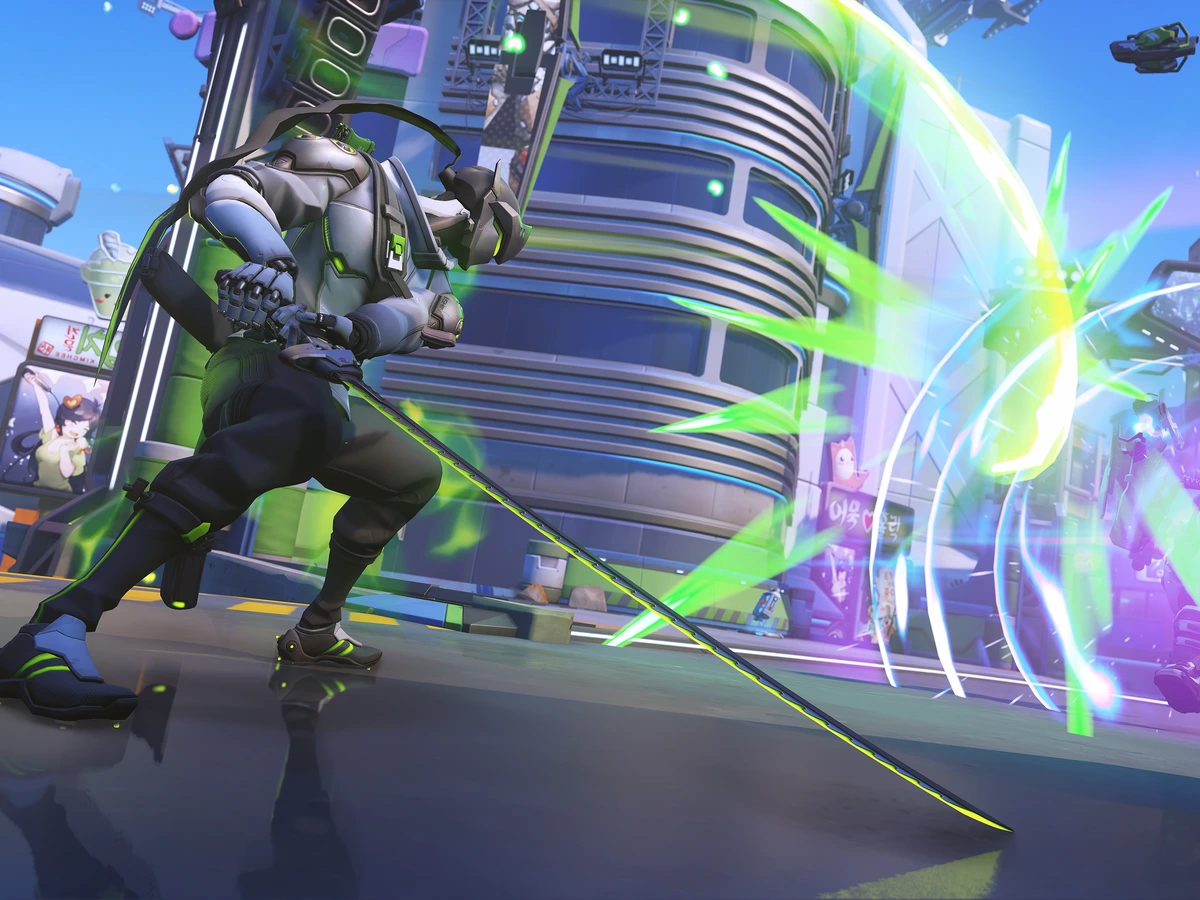
Turn on Reduce Buffering in Overwatch if you use a non-NVIDIA GPU. On a supported GeForce card, start with NVIDIA Reflex instead; Blizzard recommends Reflex + Boost for that route. Both choices concern how quickly your PC presents an action after your input. Keep the decision separate from internet ping, and compare the result before changing a whole page of graphics settings.
Choose the starting point for your GPU
Open Options and select Video. Record your current Reduce Buffering and NVIDIA Reflex choices before editing them. Blizzard's responsiveness advice divides the starting recommendation by graphics vendor: Reflex + Boost for NVIDIA, Reduced Buffering for other GPUs. NVIDIA lists Overwatch Reflex support from GeForce GTX 900-series cards onwards. Check the option actually offered by your installation, with a supported graphics driver for your card.
For a non-NVIDIA card, enable Reduce Buffering and apply the change. For GeForce, enable the game's Reflex option first, keeping the Reduce Buffering value recorded and unchanged during that initial comparison. Treat Blizzard's advice as a starting configuration, then judge the result on your own PC. If either change introduces persistent stutter or makes control feel worse, restore the original value through the same Video menu.
Decide whether Boost earns its power cost
Reflex coordinates the CPU and GPU so rendering work arrives when the GPU is ready, reducing queued work and its delay. Boost adds a different behaviour: it keeps GPU clocks high when the CPU is limiting the game and the GPU has less work to do. NVIDIA describes the additional latency benefit as modest, with potentially significantly higher power consumption. The extra word is a power-management choice, rather than a promise of more FPS.
Start with Blizzard's Reflex + Boost recommendation when input responsiveness is your priority. Compare plain Enabled separately if you want to avoid that power trade-off. Keep the same resolution, frame cap and graphics quality for both runs. Record whether the original symptom changes and which mode you prefer. Choose plain Enabled when Boost adds power use without a useful improvement for your sessions, preserving Reflex's core latency feature.
Compare the same situation and the same metric
Begin in a repeatable practice situation, using the same hero, location and actions. Then check ordinary play, where a quiet scene's behaviour can differ from a busy fight. Compare one setting at a time and repeat the comparison before keeping it. If the hitch appears after switching away from the game, include that action in each run rather than comparing one uninterrupted session with one that included an application switch.
Read SIM carefully if you use Overwatch's Network Graph. Blizzard defines it as the time your client takes to process a simulation tick. Total system latency includes more stages, from the input device through the PC to the display. A smaller SIM value describes that processing measurement; use an end-to-end latency measurement to compare the complete click-to-screen delay. Keep visible stutters, FPS and responsiveness as separate observations in your notes.
Keep driver settings and connection faults separate
NVIDIA Control Panel's Low Latency Mode is a driver control, while Reflex works inside the game. NVIDIA says Reflex overrides its driver Ultra Low Latency functionality when both are enabled. Leave that driver setting alone during the first comparison instead of changing it alongside Reflex. This keeps the game setting as the deliberate variable and gives you a clear route back to your previous configuration.
If other players jump or movement arrives late while your own view remains smooth, follow our Overwatch network-graph diagnostics. Those checks address a different delay from the render queue. For a persistent local hitch, keep your GPU, driver, game build, original settings and repeatable trigger ready for support. Include what happened after restoring the starting values so the report distinguishes a setting preference from a fault that continues across configurations.
Sources
Where this story comes from, and where you can check it.
Official sources
- Blizzard EntertainmentOverwatch 2 developer blog: Post-launch updates on gameplay, maps, and competitive ↗
- NVIDIAOverwatch: NVIDIA Reflex, Now Live - Cut System Latency In Half ↗
- NVIDIAIntroducing NVIDIA Reflex: Optimize and Measure Latency in Competitive Games ↗
- NVIDIAHow To Reduce Lag - A Guide To Better System Latency ↗
- Blizzard SupportDiagnosing Overwatch Network Problems ↗