Fortnite removed the standalone DirectX 11 choice from its PC Rendering Mode menu in v40.10. If you used that option, start with Performance instead. It reduces graphical detail, and since v40.40 it automatically chooses a DirectX rendering path for your device. You can still select the separate DirectX 12 mode when you want more visual features.
Choose a mode from the current menu
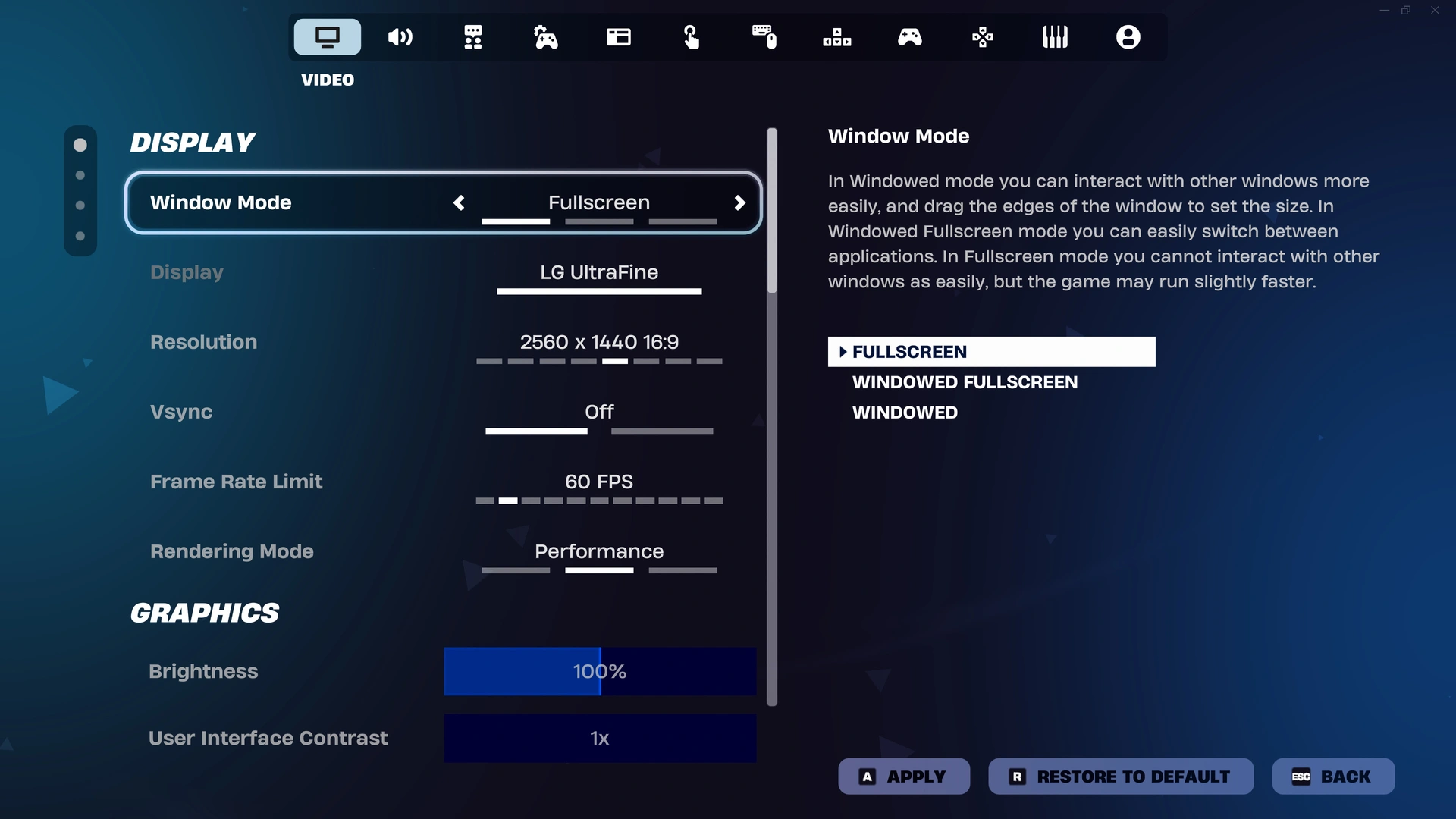
Open Fortnite, press Esc, select the gear icon and open the Video settings. Under Display, find Rendering Mode and select Performance. Click Apply, then restart the game. Return to the same menu after launching to check that Performance remains selected. Keep a screenshot of your original settings so you can return to them after the comparison.
Performance and DirectX 12 are different menu choices, even though Performance can use DirectX 12 internally. Performance turns off most rendering features to lighten the CPU and GPU load and reduce memory use. Choose it when simpler visuals are an acceptable trade for a lighter workload. Choose the separate DirectX 12 option when you want the fuller graphics settings, then tune quality within that mode.
Let Performance choose its rendering path
Start by selecting Performance inside the game, with any renderer-forcing launcher arguments removed. Record those arguments before clearing them so you can undo the change. The automatic path selection introduced in v40.40 is part of the current Performance mode; selecting that mode gives the game the choice rather than forcing a particular API yourself.
Older instructions showing DirectX 11 or a separate Legacy Performance selection describe earlier menus. Use the current choices rather than trying to recreate that old list. The October 1 v42.30 update also improved render-command pipelining on some Windows hardware in Performance mode. Compare the result on your own PC before changing several other settings: check responsiveness and recurring freezes as well as the appearance of the scene.
Unlock settings that keep resetting
If the selection returns to its previous value after restarting, close Fortnite and check whether its settings file is read-only. Press Windows Key + R, enter %localappdata% and press Enter. Open FortniteGame, then Saved, Config and WindowsClient. Right-click GameUserSettings.ini, select Properties, untick Read-only and click Apply. Leave the file's contents intact.
Launch Fortnite again, choose the rendering mode, apply it and restart once more. Check the saved selection before judging performance. A mode that remains selected but still stutters needs a performance investigation; a mode that changes back needs the saving branch. This comparison keeps those two problems separate and avoids repeatedly resetting your other preferences while trying to change one option.
Force a mode only if the selection will not stick
For a selection that still will not stay saved, use the Epic Games Launcher's Additional Command Line Arguments. Open the launcher, select the Settings icon beside your profile at the top right, click Settings, scroll down and expand Fortnite. Enable Additional Command Line Arguments. Copy any existing text somewhere safe, clear the field and enter one of the following current commands.
- Performance using DirectX 12: -d3d12 -FeatureLevelEs31
- The separate DirectX 12 mode: -d3d12 -sm6
Use one line at a time, then launch Fortnite and check Rendering Mode. The Performance command explicitly forces DirectX 12, so reserve it for this recovery branch rather than the initial automatic comparison. To return to an unforced launch, remove the command you added and disable the arguments box if you have no other arguments to use. Restart and select your preferred mode in-game.
Escalate crashes after checking the selection
If the forced launch makes behaviour worse, remove the new arguments before continuing. For graphics trouble, update your GPU driver through its manufacturer's official download route. In the separate DirectX 12 mode, try Quality Presets set to Low and 3D Resolution at 100%, then increase quality gradually if that improves stability. Performance mode is another supported comparison for crashes, freezing or black screens.
If problems persist, verify the installation: open the launcher's Library, click Fortnite's three dots, select Manage and click Verify. When verification finishes, launch again. For a support ticket, record the selected mode, any launch arguments, your graphics card and driver, and the exact error or point at which it fails. Keep those details alongside your original settings so the next comparison remains reversible.
Sources
Where this story comes from, and where you can check it.
Official sources
- Epic Games40.10 Fortnite Ecosystem Updates and Release Notes ↗
- Epic GamesFixes and Improvements in v40.40 ↗
- Epic Games42.30 Fortnite Ecosystem Updates and Release Notes ↗
- Epic GamesMy rendering mode option in Fortnite was not saved ↗
- Epic GamesHow do I fix graphic issues for Fortnite? ↗
- Epic GamesTroubleshooting low frame rate (FPS) in Fortnite ↗
- Epic Games StoreFortnite on PC: Best settings for competitive play in 2026 ↗
Independent reporting
- Windows CentralFortnite officially receives Microsoft DirectX 12 support ↗