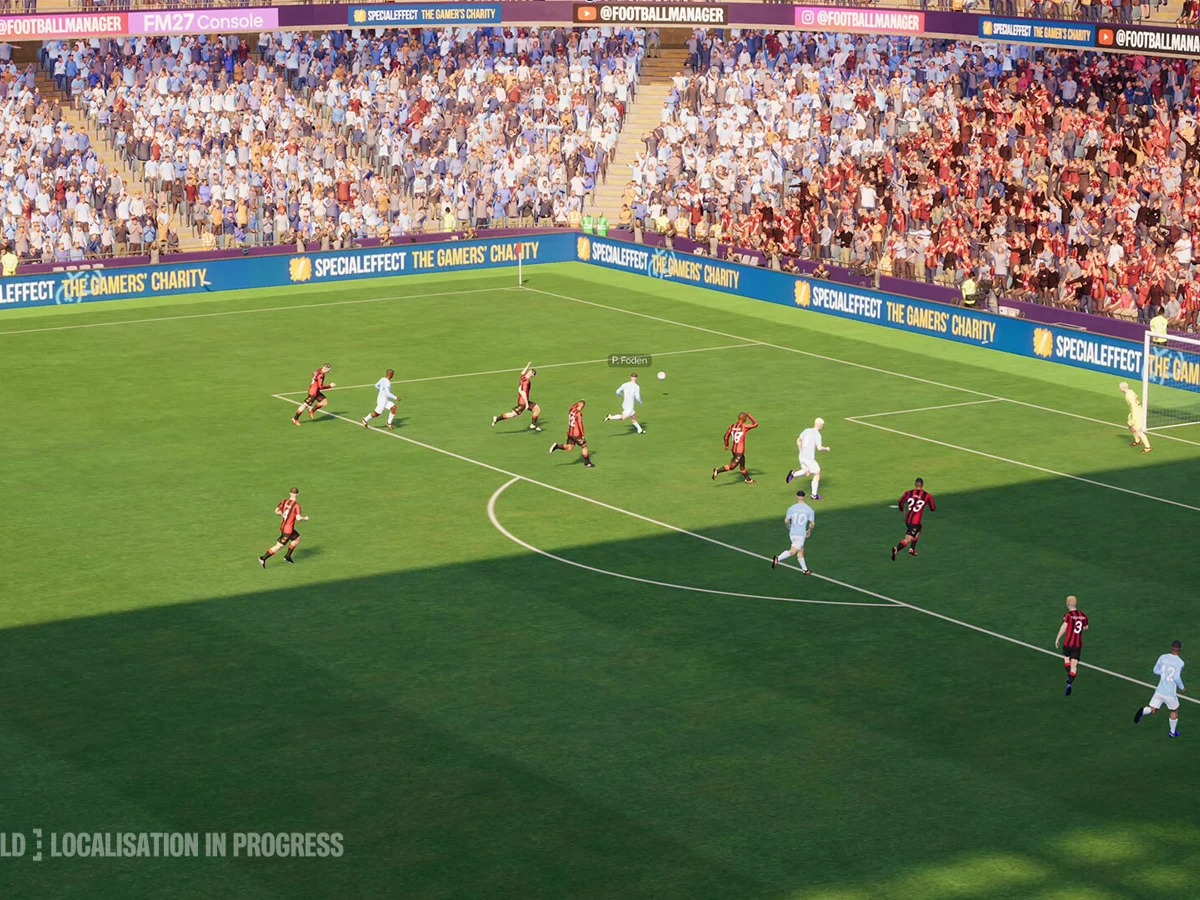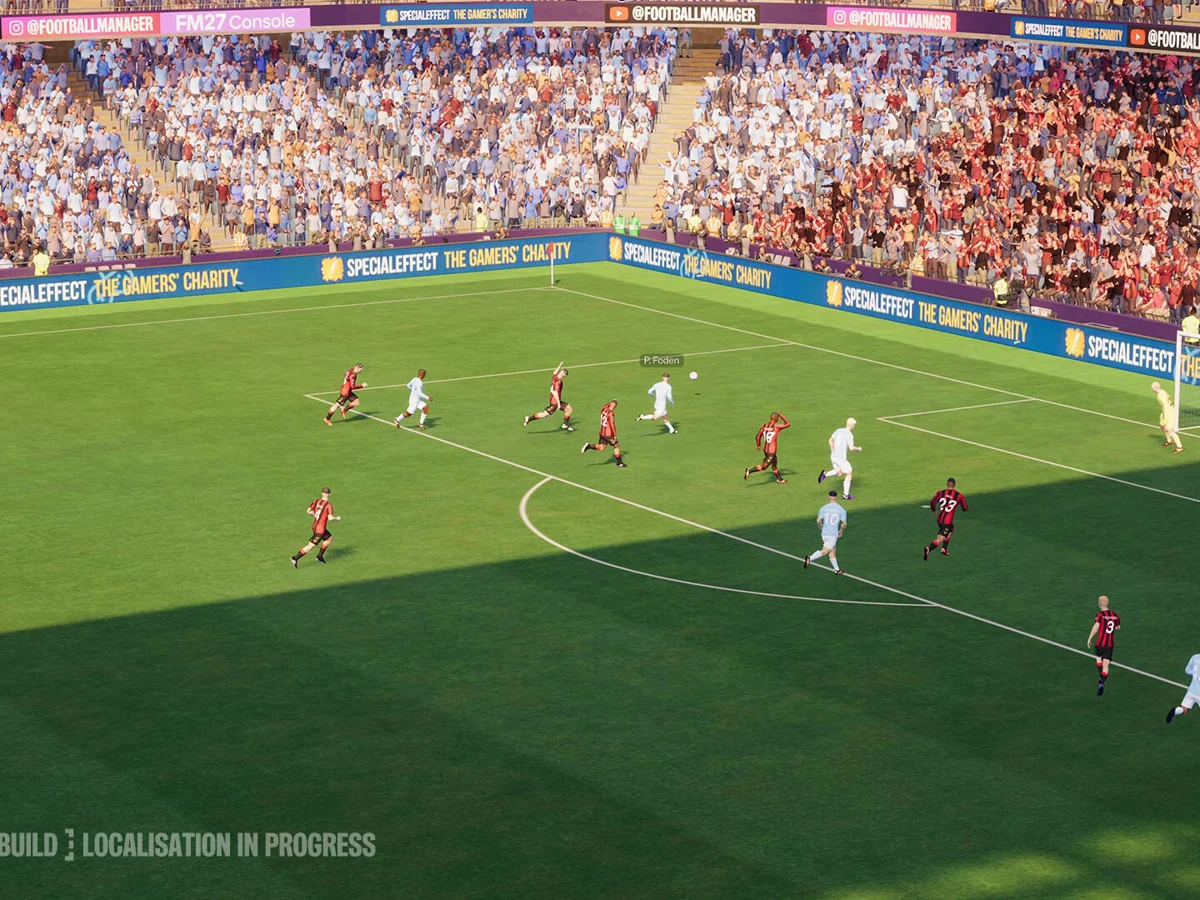
Set up Football Manager 27 from its Steam library page on Steam Deck. Keep the gamepad layout if you like moving between buttons with the sticks or D-pad, or choose a mouse-and-keyboard layout for a trackpad cursor. SEGA lists the Steam PC release as Playable on Deck. Check the game's live Steam compatibility details separately for Valve's rating. The PC release arrived on 10 November, and the 17 November update changed which resolutions can use the Information Display setting.
Choose how you want to move through menus
Open FM27 in your Steam Library and select the gamepad icon to open its controller settings. Make a note of your current layout so you can select it again later. Start with that layout and try opening your inbox and selecting a player from the Squad screen. Keep it if you can move between the controls and reach the items you use most often. That gives you a baseline before you change how the trackpad behaves.
If you'd prefer a cursor for picking individual rows or clicking small icons, open the layout selector and choose a mouse-and-keyboard template. Apply it, then revisit the same inbox message or player list. Check which inputs move the pointer and click in the layout preview, then try both in the game. Return to the gamepad icon and select your previous layout if you prefer moving between highlighted buttons. The controller change is made from FM27's own Steam page.
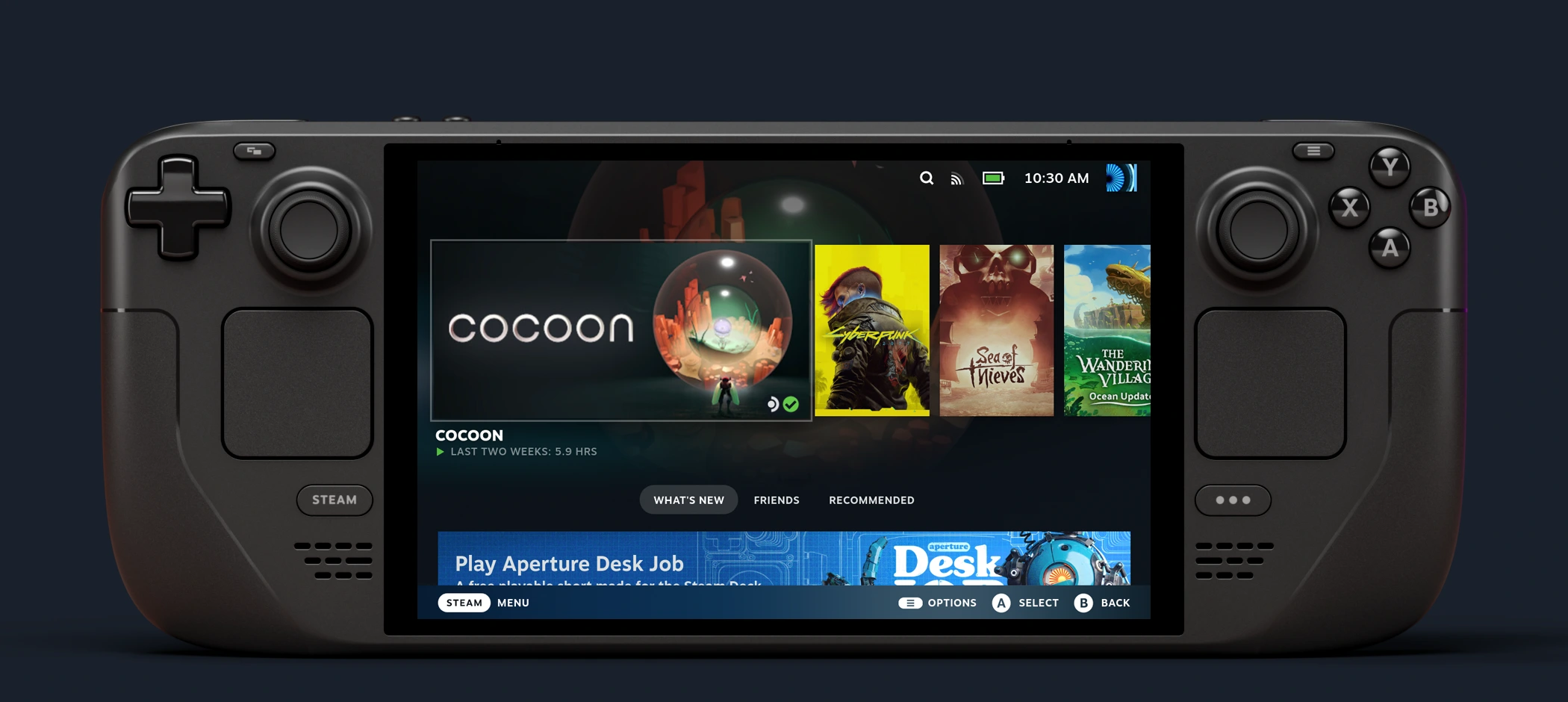
Select a text field in the game, then hold Steam and press X to show the on-screen keyboard. Try it in player search before you start a new career and need to enter a manager name. If the keys appear but letters aren't going into the game, close the keyboard, click the field again and check that the text cursor is inside it. Then reopen the keyboard. Hold the Steam button on its own to see the Deck's shortcut list.
Check Information Display when you dock
Both the LCD and OLED Deck have a 1280 x 800 built-in screen. FM27 update 27.1.0 opens Information Display options in Preferences at 1080p or higher. At the handheld's native resolution you're below that threshold. If you connect a monitor and run the game at 1920 x 1080 or higher, open Preferences and look for Information Display there. Start with the default density if you want larger interface elements.
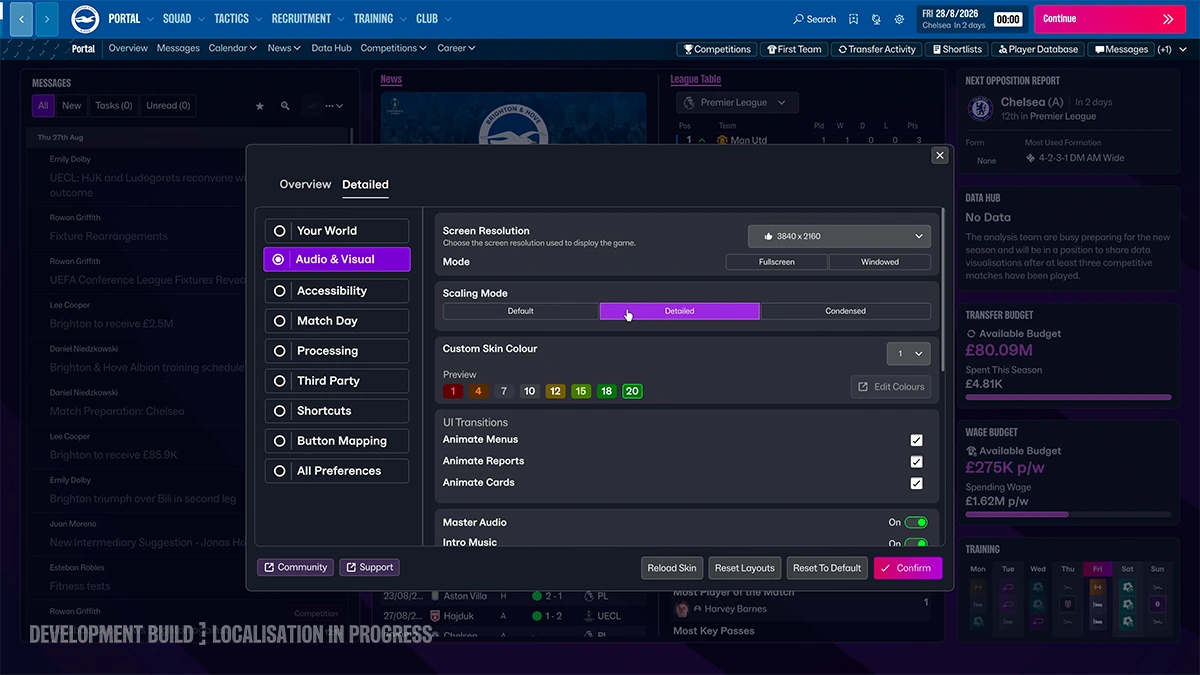
Compare the same Squad or scouting list after changing density. The useful check is whether you can still read the names and numbers you use while fitting more information on screen. Return to the default setting if the denser view makes those lists harder to scan. For the same game on a separate computer, compare the FM27 Windows and Mac system requirements before installing.
Sources
Where this story comes from, and where you can check it.
Official sources
- SEGA SupportGetting Started ↗
- ValveSteam Deck - Basic Use & Troubleshooting Guide ↗
- ValveDeck Verified ↗
- ValveIntroducing Steam Deck OLED ↗
- Sports InteractiveFM27 Update 27.1.0 Changelist ↗
- Sports InteractiveFM27 Deep Dive: Navigation Upgrades ↗