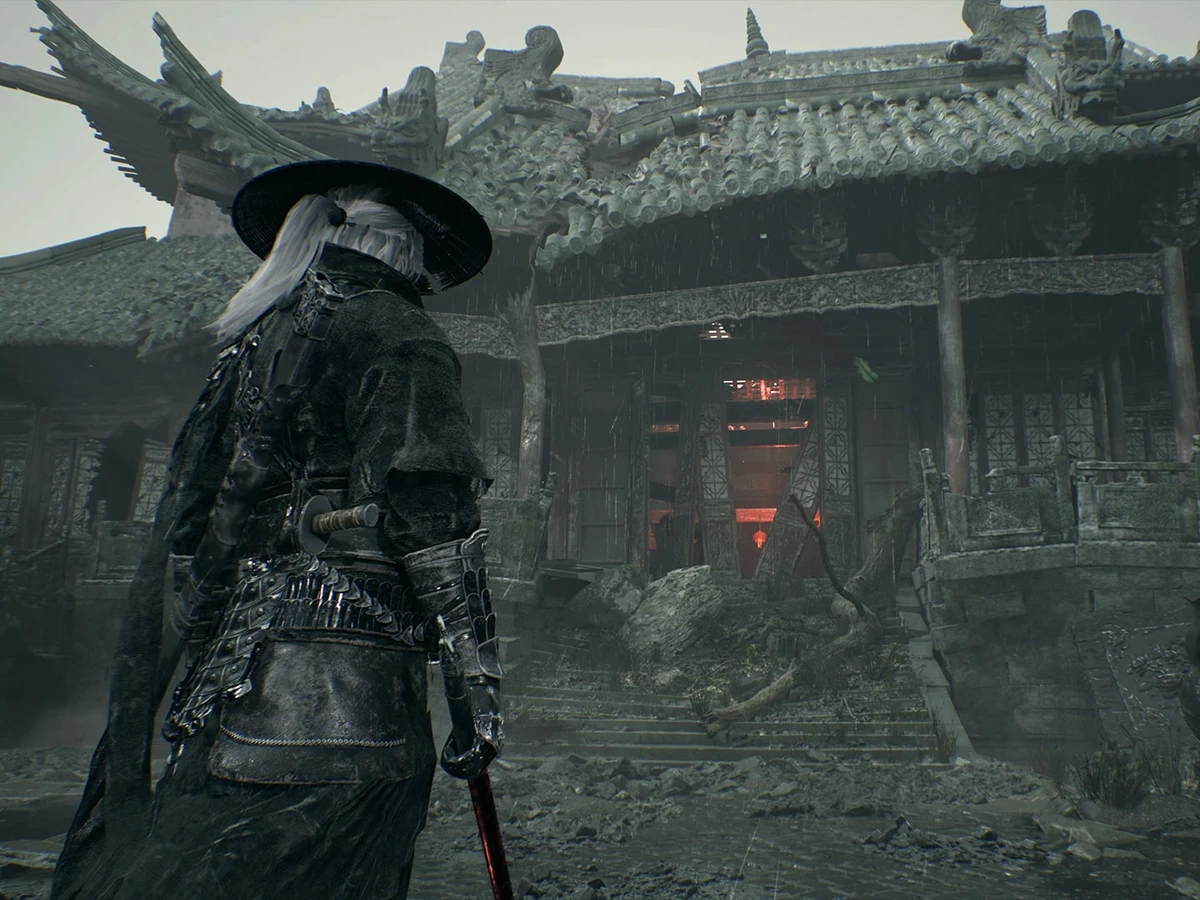
Reserve at least 300 GB of free space on your installation SSD before preloading Phantom Blade Zero on PC. The finished game takes approximately 145 GB, but temporary files share the drive with the complete game during unlocking. This covers the 29 October 2026 launch; pre-launch storage requirements may change at release.
Make room on the installation SSD
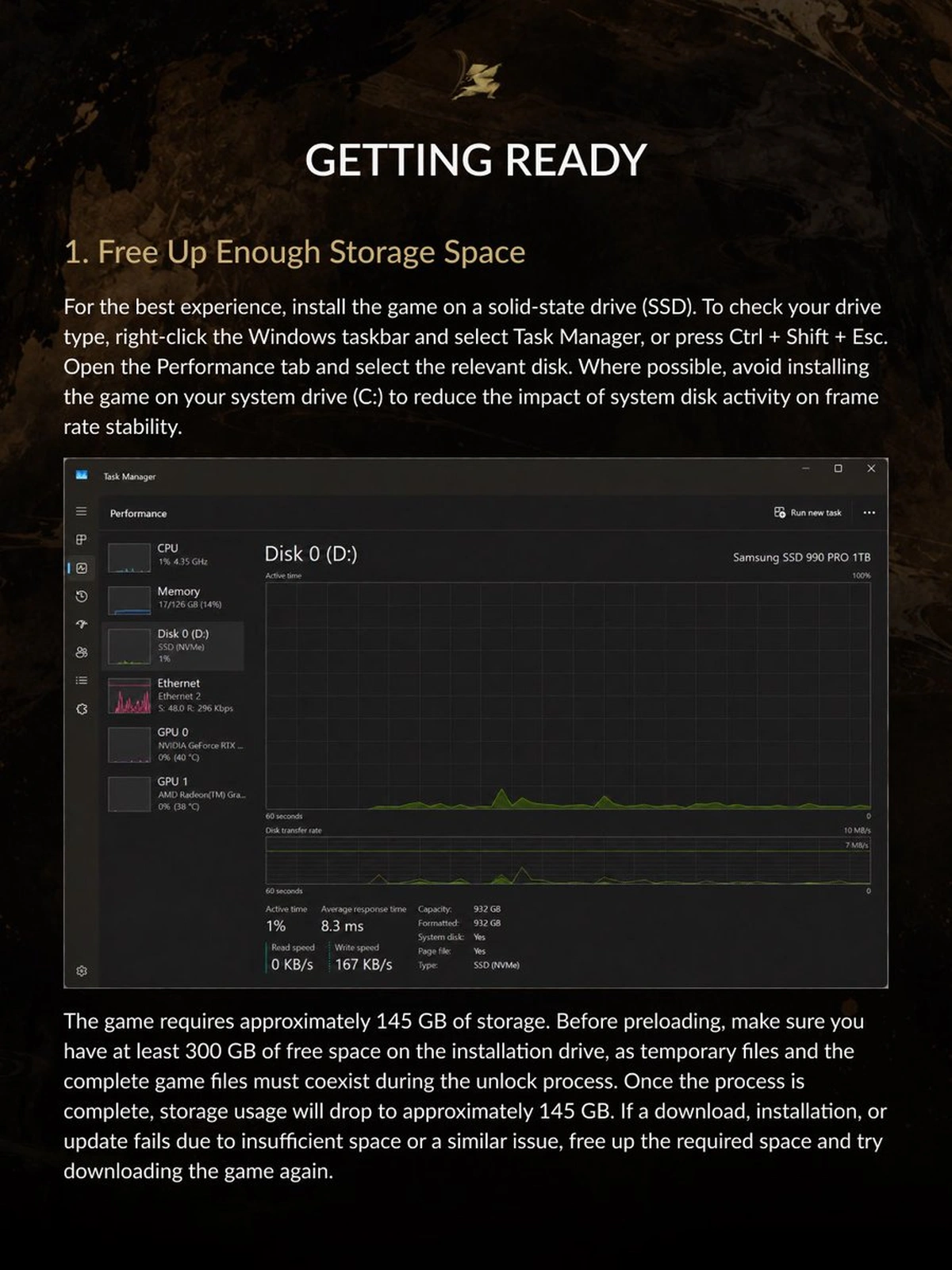
Check the free space on the drive you will actually install to. Aim for at least 300 GB free before beginning the pre-load, even if you have already made room for the approximately 145 GB finished installation. Keep that space available through the unlock process, when both sets of files need to coexist on the same installation drive.
Use an SSD for the installation. To check your drive type in Windows, press Ctrl + Shift + Esc to open Task Manager, choose Performance and select the relevant disk. Read the drive type shown there. If you have another suitable SSD, S-GAME recommends using it instead of your C: system drive to reduce the effect of system-disk activity on frame-rate stability.
Retry after freeing enough space
If a download, installation or update fails because of insufficient space, free up the required room on that installation drive and try downloading again. Use the 300 GB allowance for the pre-load process. Once unlocking finishes, storage usage should fall to approximately 145 GB; keep the extra working room available until that process completes.
Treat the 145 GB figure as the game's approximate installed storage, rather than a promised network-download size. The larger allowance covers the temporary overlap during unlocking. Your useful checkpoint before preloading is the free space on the chosen SSD, followed by completion of the unlock process.
These storage figures apply to the PC version. For a look at the adventure after your installation is ready, read about Phantom Blade Zero's connected Wulin regions.
Sources
Where this story comes from, and where you can check it.