To take a specific item out of a bundle in Minecraft, open your inventory and select it inside the bundle's tooltip. With a mouse, keep the pointer over the bundle, scroll to the item you want and right-click. On a controller, use the right stick to choose the contents, then the inventory's Take From Bundle action.
These controls cover the released Java and Bedrock bundle system introduced in Bundles of Bravery on 22 October 2024, from Java 1.21.2 and Bedrock 1.21.40. They apply on PC, PlayStation, Xbox, Nintendo Switch and mobile, including the compatible Switch game on Switch 2. Use an updated, unmodified game; you can leave experimental world settings alone.
Select the item inside your inventory
Open your inventory and find the filled bundle. Hover over it so the contents panel appears, then leave your pointer on the bundle itself while you scroll. Choose the item type you need before right-clicking. Watch the bundle icon: the selected item pokes out of the top, giving you a way to check the choice before removing it.
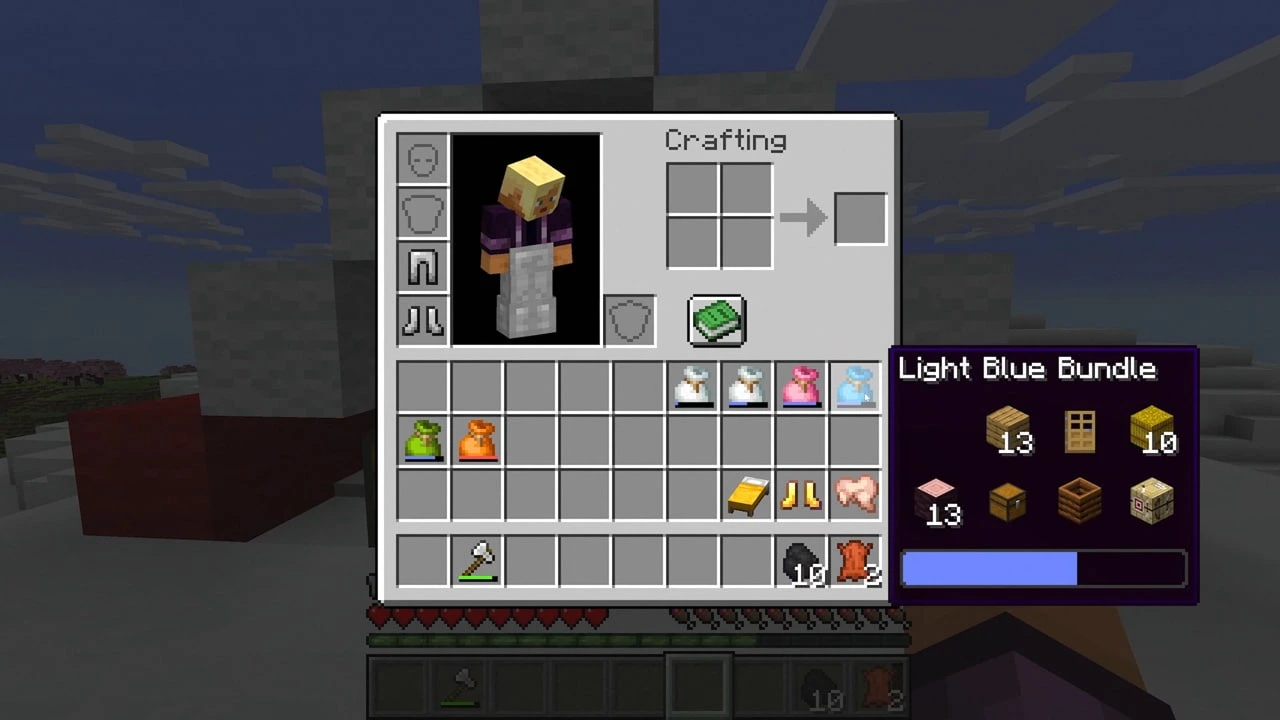
Use that selection step when you want something other than the first available item. Simply right-clicking takes the first item type; scrolling changes which type you retrieve. Place the removed contents into an available inventory slot, then return to the bundle for your next selection. Keep a spare slot available so you have somewhere to put the contents you are unpacking.
Use the right stick on consoles
With a Bedrock gamepad, focus the bundle in your inventory and use the right stick to move through its visible contents. Check the item shown poking out of the bundle, then use the button indicated for Take From Bundle. Follow that inventory action rather than the button used to hold or use an item out in the world.
The same selection method applies with a controller on PC. Use the on-screen prompt for your controller layout rather than translating a mouse instruction into a guessed face button. On a touch device, tap the visible item in the bundle's contents to select it. Your input method changes how you choose the contents; the bundle still has the same limited preview.
Unpack visible items to reach hidden contents
If the item you need is missing from the preview, take out some visible contents first. With fewer than 12 item types, the tooltip shows every type. At 12 or more, it shows the top three rows and hides the others underneath. Scrolling selects the visible entries, so unpacking those entries is how you expose items deeper in the bundle.
Set the removed items aside in your inventory while you find the wanted entry. Once you have retrieved it, repack the others: with a mouse, left-click an item onto the bundle to insert it. A bundle combines mixed items within one stack's capacity, usually 64 items in total. Use it to gather small leftovers together rather than expecting a chest's worth of extra slots.
Keep retrieval separate from dropping items
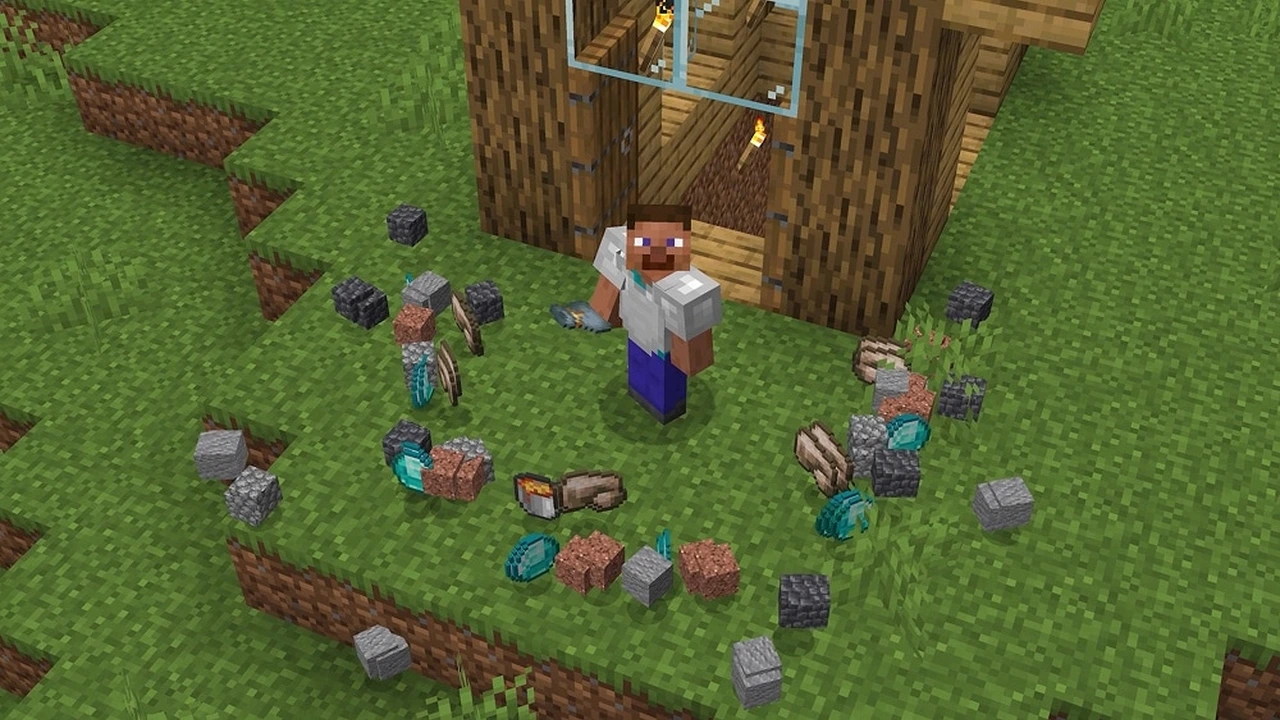
Stay in the inventory when you want to keep the contents. Holding a bundle out in the world and using it empties items onto the ground instead. On Java, right-clicking does that, and holding right-click continues emptying it. Choose a safe place and use that route only when dropping the contents is what you intend to do.
After retrieving your item, check its name and quantity in your inventory before closing the screen. For materials you plan to use immediately, leave them outside the bundle. If your next job is naming a creature, follow the name-tag crafting and anvil steps after unpacking the ingredients. That job needs the individual materials ready for crafting.
Sources
Where this story comes from, and where you can check it.
Official sources
- Minecraft.netMinecraft Java Edition 1.21.2 ↗
- Minecraft.netMinecraft 1.21.40 Bedrock Changelog ↗
- Minecraft.netBundles of Bravery ↗
- Minecraft.netMinecraft Java Edition 26.3 ↗
- Minecraft.netMinecraft: Bedrock Edition 26.50 Changelog ↗
- NintendoMinecraft ↗