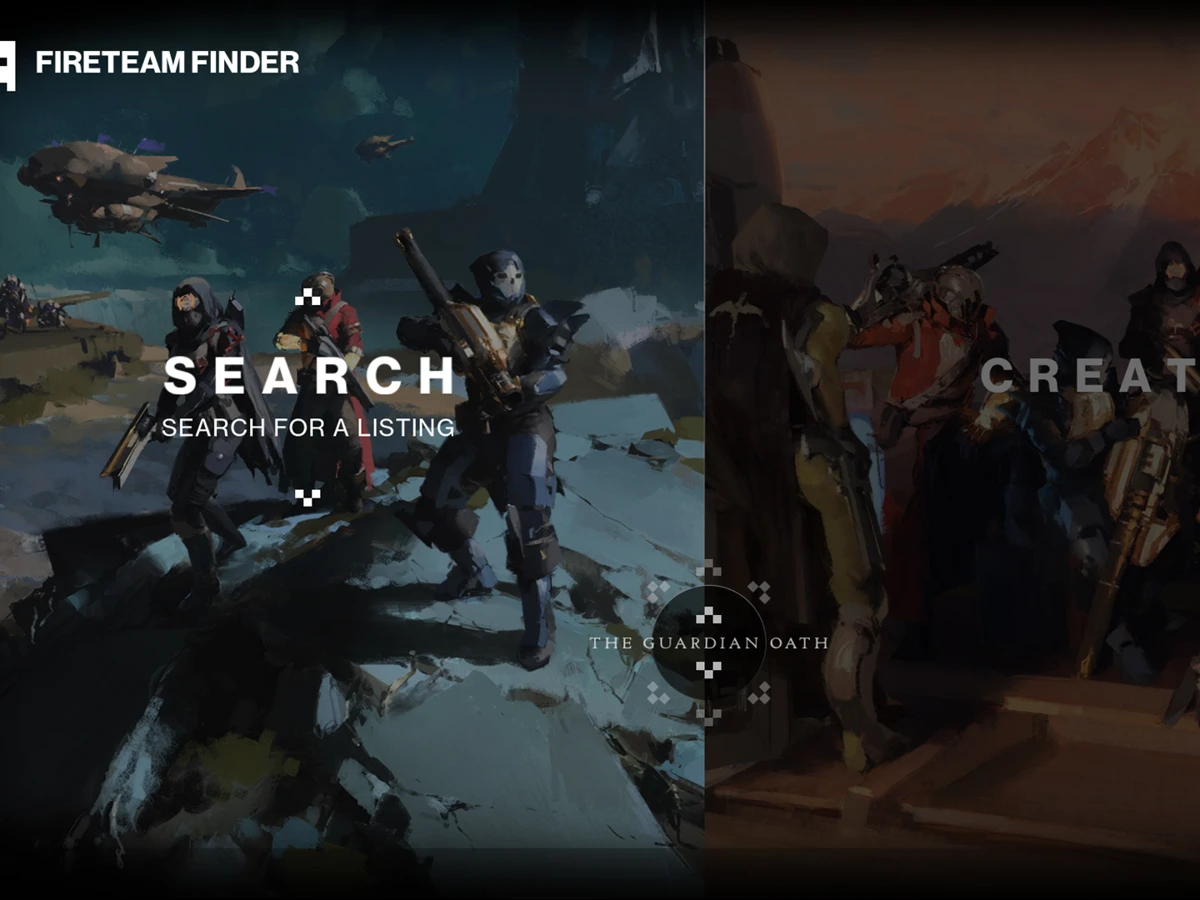
Open the Roster tab in Destiny 2 and choose Fireteam Finder to search for a group or make your own listing. Reach Guardian Rank 5 first and accept the Guardians Oath when prompted. Joining a listing gets you into its lobby; ready up there so the host can summon the group into Orbit.
This covers the in-game finder and its linked web and Companion app listings, checked against Bungie's current support instructions on 19 November 2026. The route applies on PC, PS4, PS5, Xbox One and Xbox Series X|S. Fireteam Finder's permanent beta launched in December 2023; use the current activity choices rather than trying to reproduce an old screenshot's list.
Search for a group or create a listing
From Roster, open Fireteam Finder. You can also use Find beneath your emblem on an activity's launch screen. Choose Search for a Listing, select the activity you want to play, and open a suitable listing. Read its requirements before joining: a group seeking an experienced clear and one helping newcomers can be attempting the same activity with very different expectations.
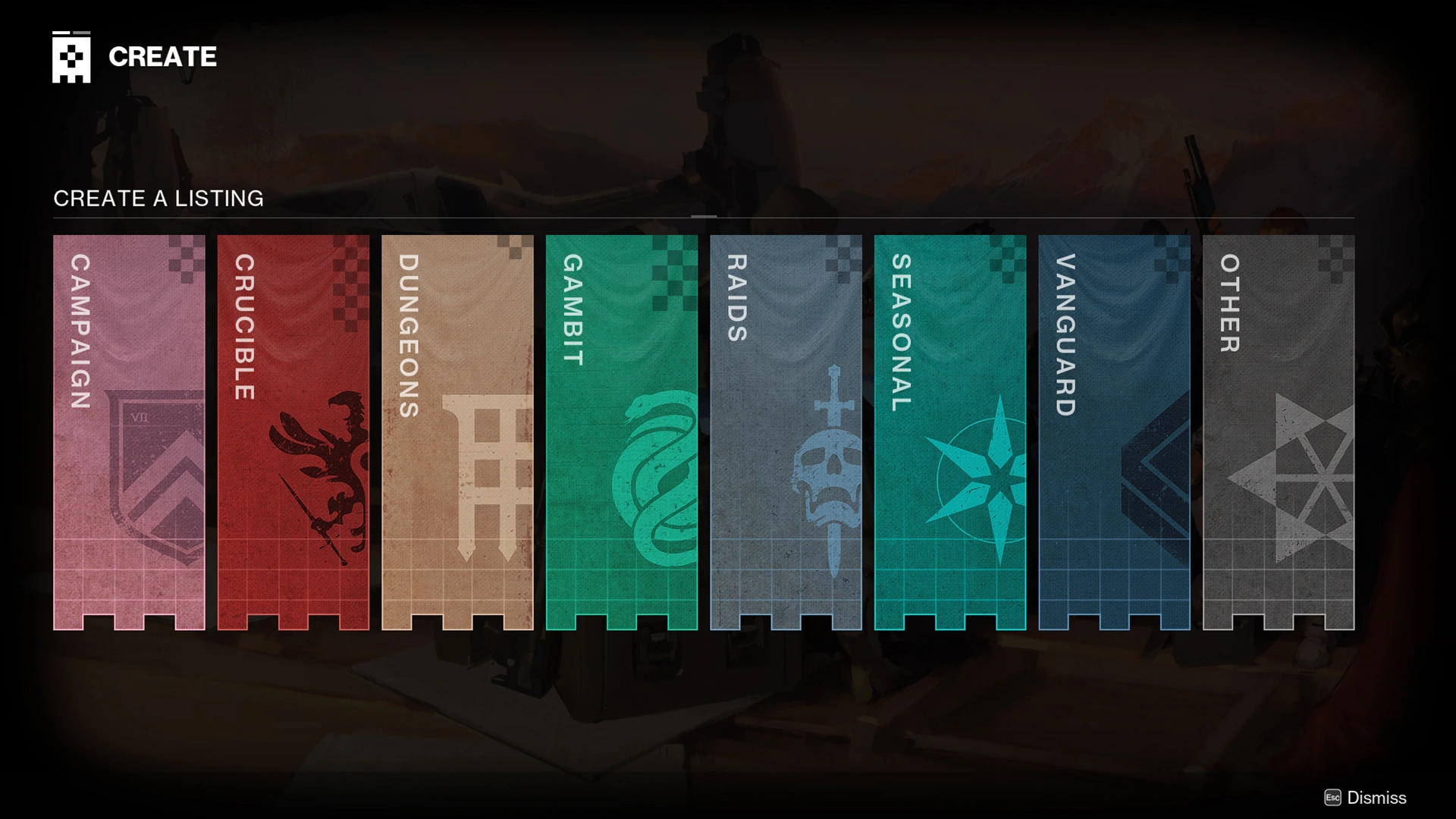
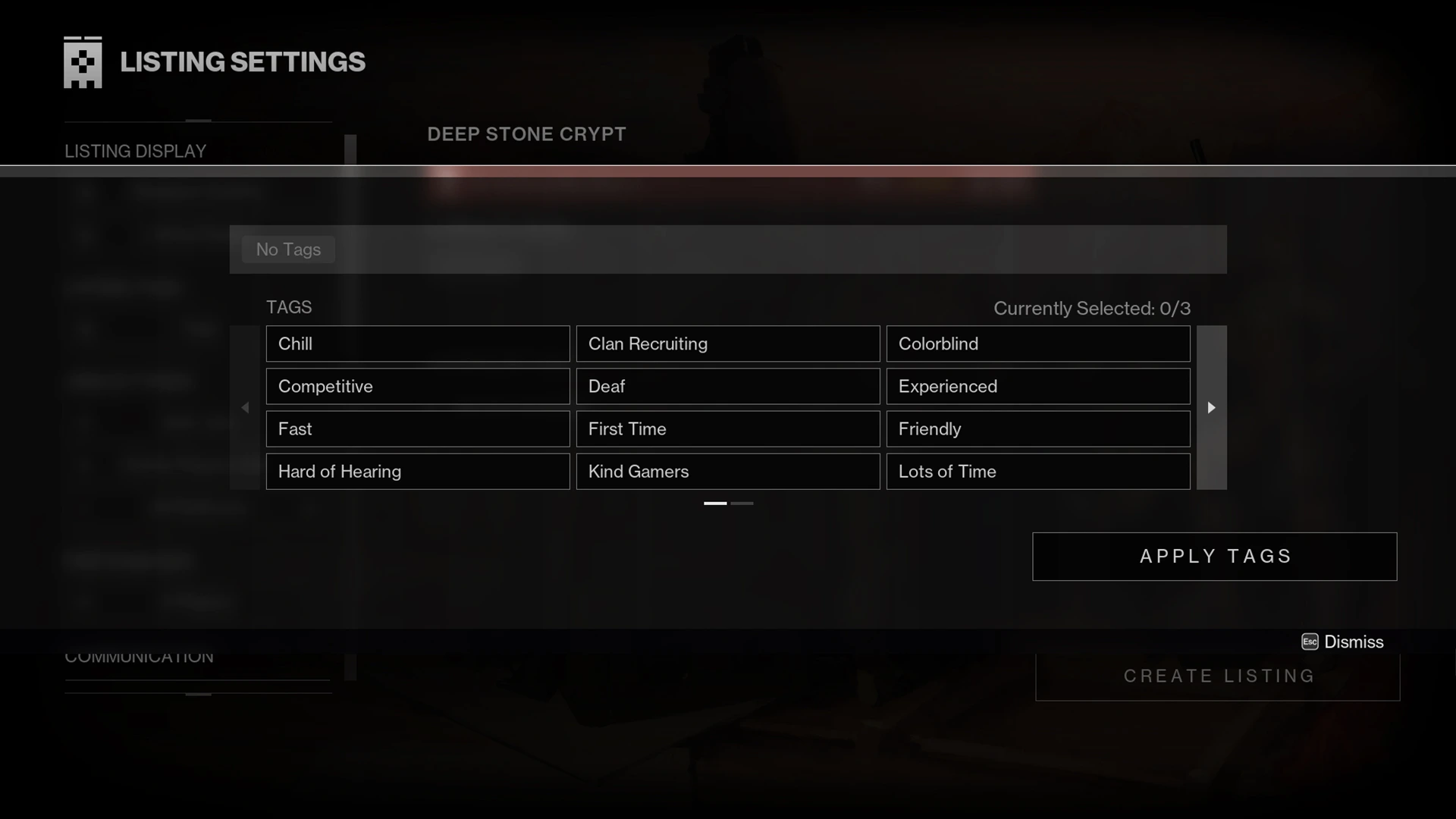
Auto Join lets you enter immediately; an application-based listing needs the host to accept you. If you want to organise the run yourself, choose Create a Listing and set its activity, title, tags and fireteam size. Set join permissions deliberately: accepting applications gives you a chance to review each applicant before adding them to the lobby.
Choose communication, language and platform preferences that suit the session. Explain what you need through the listing rather than assuming an application filter has done the work: the platform, microphone, language and minimum-rank preferences communicate expectations but still allow other players to apply. Check that applicants understand the run before accepting them, especially if you need voice communication for your chosen activity.
Ready up, then summon the fireteam
Once you have joined the lobby, press Ready Up when you are prepared to play. As host, wait for the group to fill and everyone to ready up, then press Summon Fireteam. Accept the resulting invitation to assemble in Orbit. Start the activity from there; treat the listing lobby as the organising stage rather than the activity itself.
Check invitations and scheduled listings
If an invitation does not arrive, open Settings, then Social, and set Fireteam Invites to Public. Check Fireteam Privacy as well if it is Closed. You can review pending invitations from Roster's Invites tab. Cross Play is enabled automatically across supported platforms, so you can assemble a mixed-platform group without linking Cross Save or moving your characters.
For a future session, sign into Bungie.net or the Destiny Companion app with the platform account holding your characters. Open Fireteam Finder on the website or Fireteams in the app. When creating the listing, choose Scheduled and its date and time. Activate it as Playing Now when you are online and ready: scheduled listings only appear in-game after that activation. You can have one Playing Now listing at a time.
If players cannot join after an update, have everyone close Destiny 2 and install the latest version; a version mismatch can produce SHEEP. Check Bungie's server status during maintenance, when web and app sign-in can also be interrupted. Wait for service to return before changing a working account setup. Once everyone reaches the same Orbit fireteam, you can launch together.
Sources
Where this story comes from, and where you can check it.
Official sources
- BungieFireteam Finder Guide ↗
- BungieDestiny Server and Update Status ↗
- BungieDestiny 2 Cross Play Guide ↗