To move everything from one Nintendo Switch 2 to another, start a full system transfer during the new console's initial setup, then choose System Transfer to Nintendo Switch 2 in the old console's System Settings and keep both side by side until it finishes. Nintendo added Switch 2-to-Switch 2 transfers in its September 2026 system update. Use this when the old console is leaving your household. If you're keeping both, move only the saves you need: a full transfer moves every user and can remove data from the old console.
Choose the right route before you begin
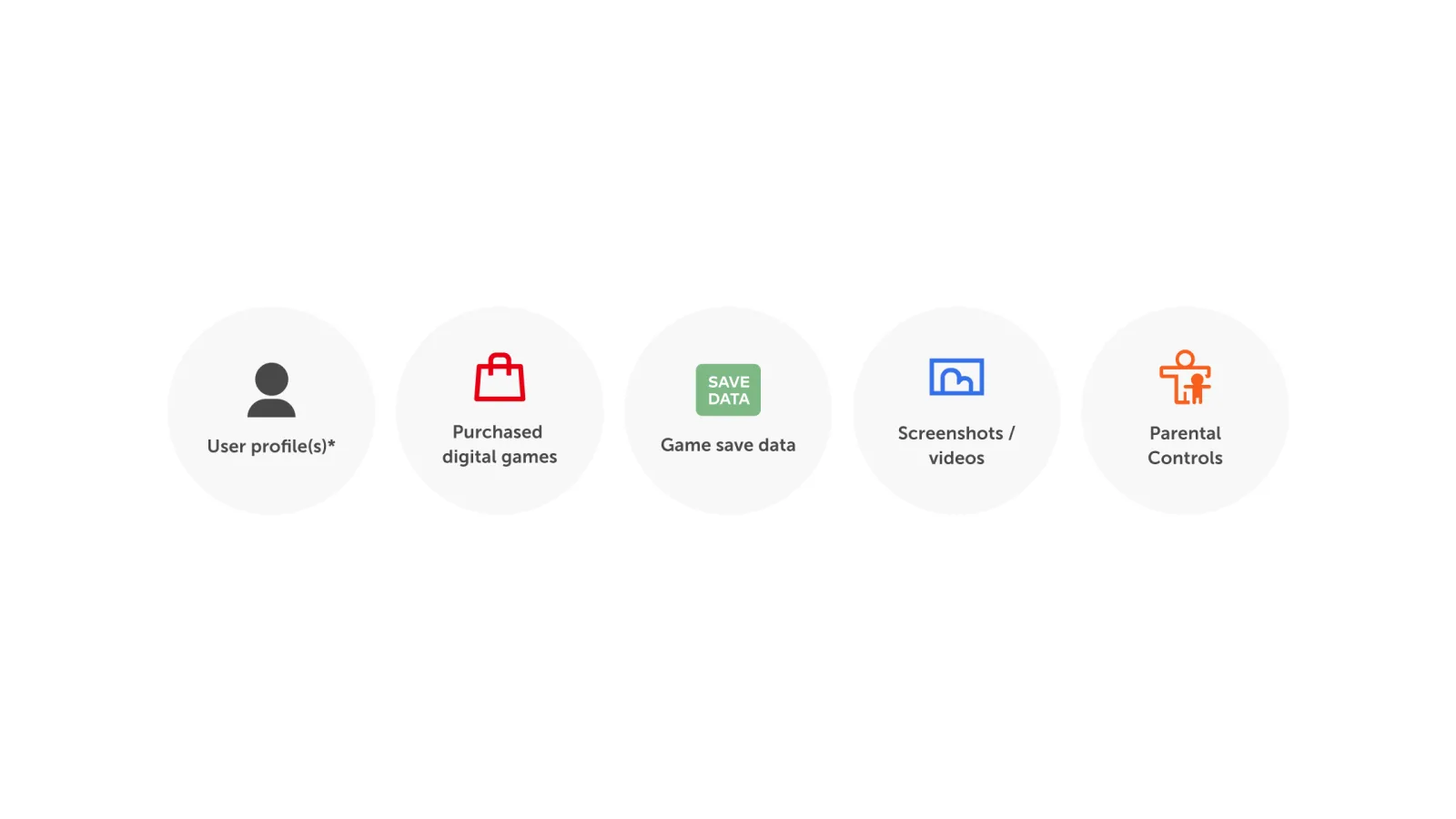
Use the full system transfer when the older Switch 2 will be traded in, repaired, sold or handed on. Nintendo says it moves users, linked Nintendo Accounts, friends, play activity, settings, screenshots held in system memory and selected digital content to the target Switch 2. It needs both systems on the latest version, internet access and close proximity for a local transfer. Charge both consoles first and do not start immediately before a trade-in appointment. You need time to confirm the new console is usable before the old one disappears.
Do not use the full route just to duplicate a favourite save on a second console. Nintendo's separate save-data transfer fits better when both Switch 2 consoles will remain in use. It moves a user's selected game save to the other console and removes that save from the original. Sign into the Nintendo Account on the new system for your purchases; use Virtual Game Cards if your aim is to use digital games across consoles. Save Data Cloud can restore backups for games that support it, but not every game does.
Pick the safe route
- Replacing the old Switch 2
- Use a full system transfer during the target console's initial setup.
- Keep both Switch 2
- Sign in on the second console and transfer only the required save data.
- Old console is already gone
- Sign in on the new console and download eligible Save Data Cloud backups.
Prepare the source and target consoles
Update the old Switch 2 before entering the new one's setup flow. On the source console, open System Settings, choose System, then use System Transfer to Nintendo Switch 2. On the target, progress through initial setup until the system-transfer screen appears, connect to the internet when asked and sign in with the same Nintendo Account that will begin the move on the source. Nintendo's UK support guide places the full transfer in initial setup, so do not finish setting up the new console first if this is the route you need.
Check your storage and accessories with care. Digital games download to the target after the transfer rather than being copied directly, so leave space and time for the library to return. An original Switch microSD card cannot hold Switch 2 game data; Switch 2 uses microSD Express cards. Nintendo says captures stored on an original Switch microSD card can require that card to be inserted temporarily during a transfer. Bluetooth audio pairings, custom controller button mappings, time zone, region and language do not move, so note any important settings before proceeding.
Run the local Switch 2-to-Switch 2 transfer
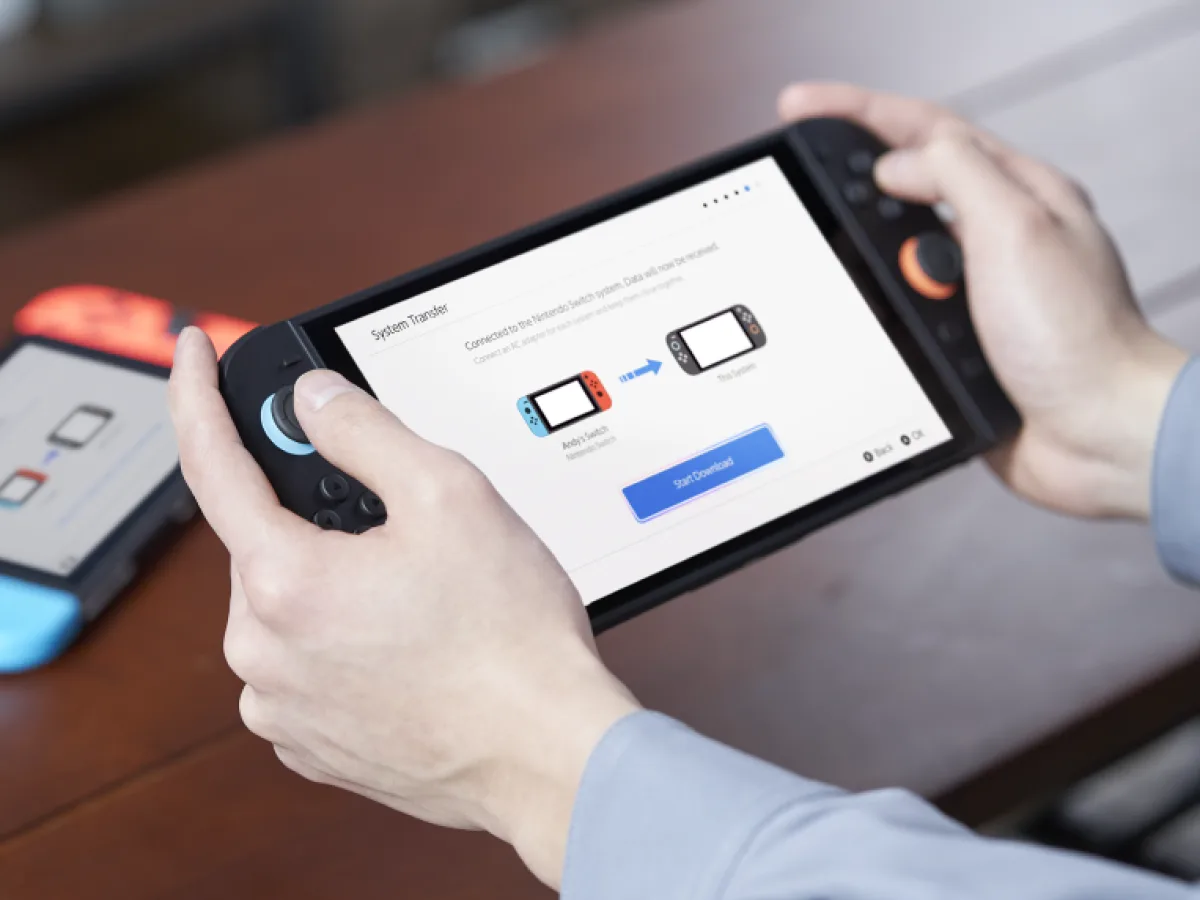
On the new console, choose Begin System Transfer, follow the prompt for a microSD Express card if you have one, then sign in and confirm that both Switch 2 consoles are nearby. On the old console, use System Settings, System and System Transfer to Nintendo Switch 2, then follow the on-screen checks. Choose whether software should redownload automatically and whether captures should transfer. When the target is ready, select Start Receiving Data and leave both consoles powered, close together and undisturbed until the transfer reports completion.
The target console restarts after it receives the data, then continues its setup. Do not erase, sell or return the old Switch 2 until you can sign in on the new system, see the intended users and check the saves that matter. Open a few games whose progress is important before treating the move as complete. This verification is worthwhile because Nintendo's behaviour differs by save type. Check each account, download and non-cloud save you care about before you hand the old console on.
Know what can leave the old console
Local transfer treats cloud-compatible and non-cloud saves differently. Nintendo says a Save Data Cloud-compatible save belonging to a user linked to a Nintendo Account remains on the source and is copied to the target. A save for an unlinked user, or for a game that does not support Save Data Cloud, is deleted from the source after the transfer. If the old Switch 2 has to remain usable, check this game by game before starting. An individual save-data transfer may be the safer option for the narrow result you want.
A server transfer is for when you have the old console now but will not have it once the new Switch 2 arrives. Nintendo says that upload factory-resets the source, includes all users and stores the transfer for up to one year, with the displayed expiry date setting the deadline. Recovery can only happen during the target console's initial setup with the same Nintendo Account. For a replacement console that is already beside the old one, local communication is the safer, simpler route because it avoids wiping the source before you have confirmed the target works.
The safe replacement-console checklist
- Before
- Update and charge both Switch 2 consoles; confirm that every shared user is ready to move.
- During
- Start the full transfer in the new console's initial setup and keep both systems close.
- After
- Check key saves, users and downloads before disposing of the old console.
Only dispose of the old console after the checks are complete.
Sources
Where this story comes from, and where you can check it.
Official sources
- Nintendo UK SupportSystem Transfers to Nintendo Switch 2 ↗
- Nintendo SupportTransferring Digital Games and Nintendo Accounts Between Nintendo Switch 2 Consoles ↗