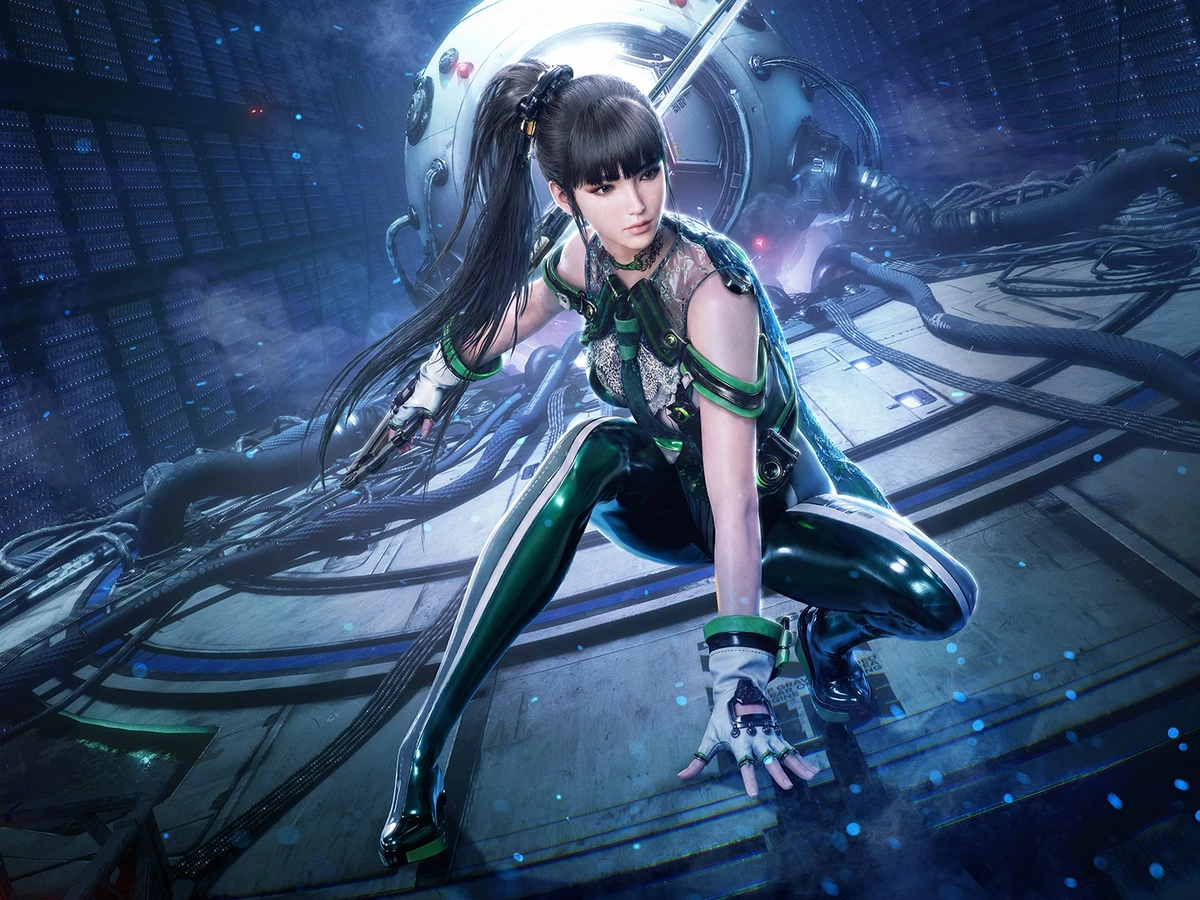
Dock your Switch 2, then set HDR Output to Compatible Software Only under Display in System Settings to play Stellar Blade in HDR on a compatible TV. This applies to the Switch 2 release from 5 November 2026 and covers the signal from your dock to your TV.
Set HDR Output for compatible games
Put your Switch 2 in its dock and select the TV input connected to it. From the HOME Menu, open System Settings and scroll down to Display. Find HDR Output in the TV settings and select Compatible Software Only. The Console Screen setting controls HDR on the Switch 2's own display, so use the TV setting for this setup.
Compatible Software Only lets the console send an HDR signal for supported games such as Stellar Blade. Always Enabled also sends HDR video for other software. Leave the setting on Compatible Software Only if you want games without HDR support to keep their standard output. The setting applies across the console, so any change you make here affects other games you play through the dock.
Adjust HDR and check the dock signal
In the same Display menu, select Adjust HDR with the console docked and follow the on-screen controls to tune the picture for your TV. Repeat the adjustment when you move the dock to another HDR TV. To check the connection, open Video Output Information in Display and look at the HDR information for the TV signal. Then return to Stellar Blade to judge how the picture looks in play.
To go back to standard dynamic range, return to HDR Output and choose Disabled. Compare the same scene on the same TV with the setting enabled and disabled. If the picture concern is how smoothly the camera moves, use the separate Stellar Blade Frame Generation setting to compare motion while keeping your TV settings fixed.
Check the TV input if HDR is unavailable
If the Switch 2 reports that the connected TV does not support HDR or that HDR is turned off, check the TV's settings for the HDMI input your dock uses. Some TVs control HDR separately for each input. Check the TV manual for which ports accept HDR and how to enable it, then return to Display and run Adjust HDR once the dock is connected to an enabled port.
Sources
Where this story comes from, and where you can check it.
Official sources
- NintendoStellar Blade™ Complete Edition ↗
- NintendoHow to Adjust the Display Settings on Nintendo Switch 2 ↗
- NintendoMessage Displays for HDR Output on Nintendo Switch 2 ↗