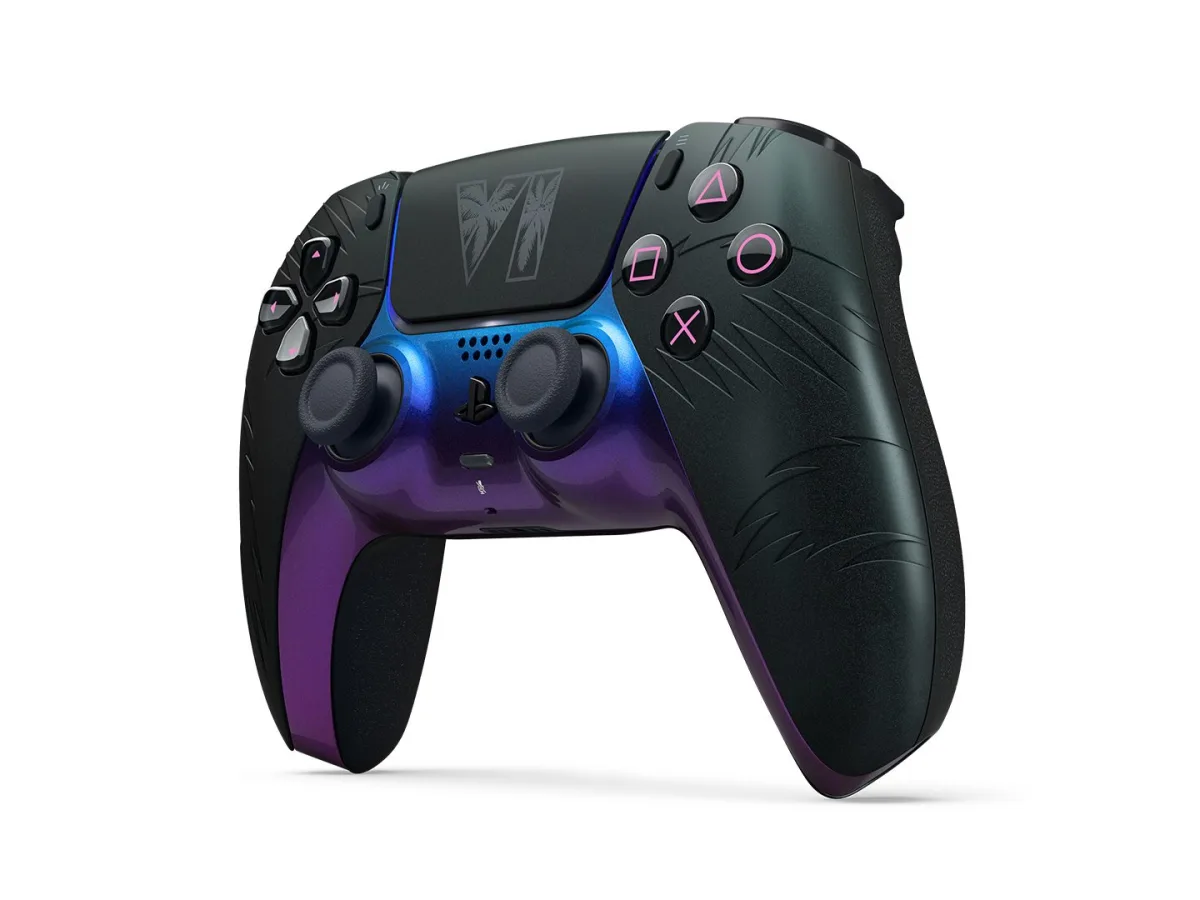
Enable Remote Play on your PS5 or Xbox Series X|S, then connect to that console from a supported device to play Grand Theft Auto VI. Your console runs the installed game and sends its picture to your device. You can set up and check the connection with a game you already own ahead of the 19 November 2026 release. This covers the announced launch version. Supported streaming devices may change by release.
Connect to your PS5
Connect the PS5 to the internet, update its system software and sign in with the account you use on your PlayStation Portal or in the PS Remote Play app. On the PS5, open Settings > System > Remote Play, then turn on Enable Remote Play for the user who will connect. If you want to wake your PS5 from rest mode, go to Settings > System > Power Saving > Features Available in Rest Mode and turn on Stay Connected to the Internet and Enable Turning on PS5 from Network.
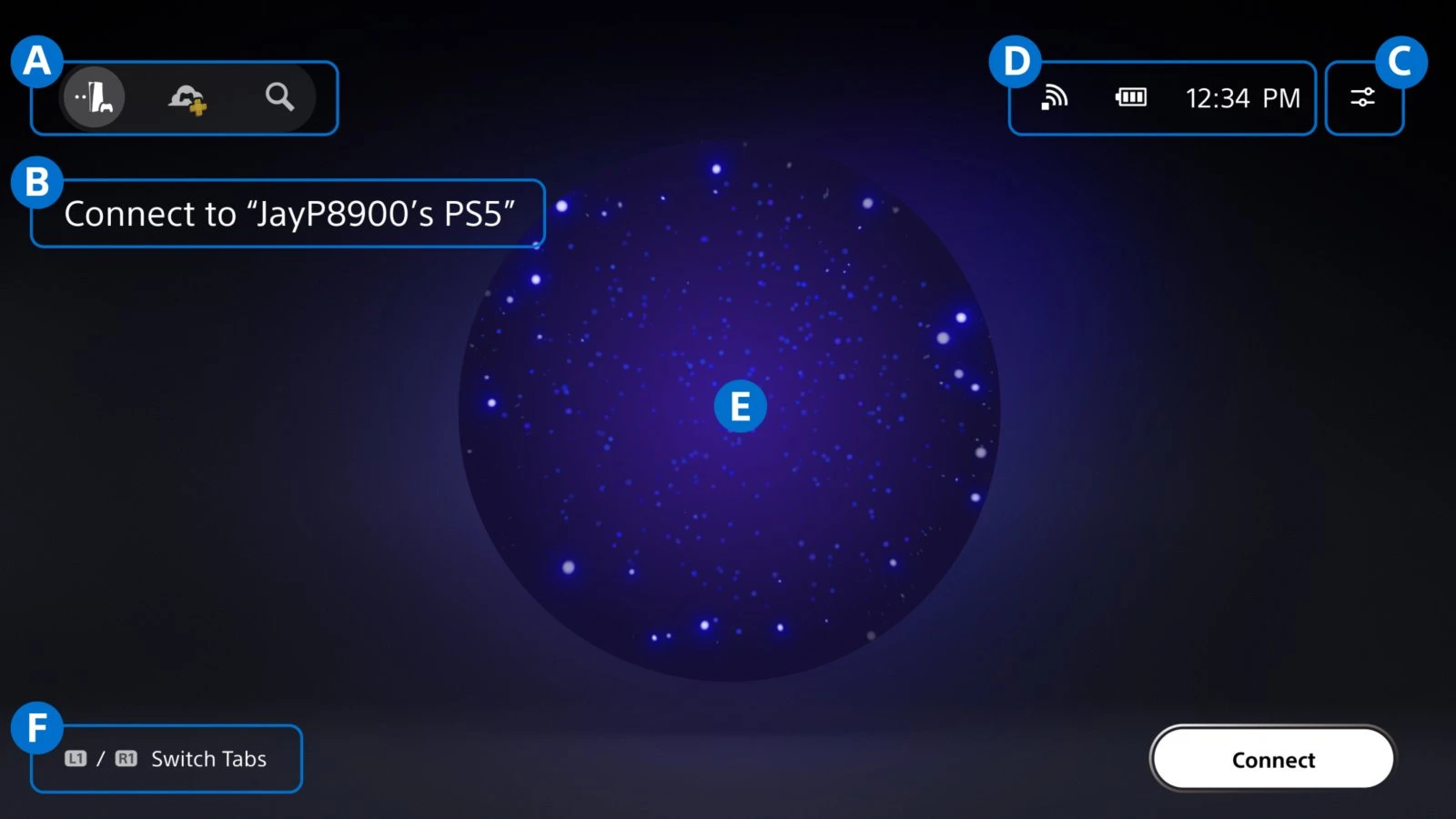
On your Portal, open the Remote Play home screen and tap the portal on screen or press the cross button. It reconnects to the PS5 you used previously. To pick a different console, open the quick menu, select the PS5 icon and choose the console you want. On a supported phone, computer or other device, use the PS Remote Play app and sign in with the same PlayStation account to connect to your PS5.
On a PC or Mac, connect a compatible controller by USB, open PS Remote Play, sign in and select PS5. If automatic pairing fails, put both devices on the same network and open Settings > System > Remote Play > Pair Device on the console. Enter the number shown on your TV into the app on your computer. When the pairing succeeds, the PS5 screen appears in the app.
Connect to your Xbox Series X or S
On the Xbox with GTA VI installed, go to Settings > Devices & connections > Remote features and tick Enable remote features. Leave the console on for your first connection. On your phone, tablet or computer, open xbox.com/remoteplay in a supported browser, sign in with the Microsoft account you use on the console and select your Series X or Series S. Use a compatible controller on the device you're streaming to.
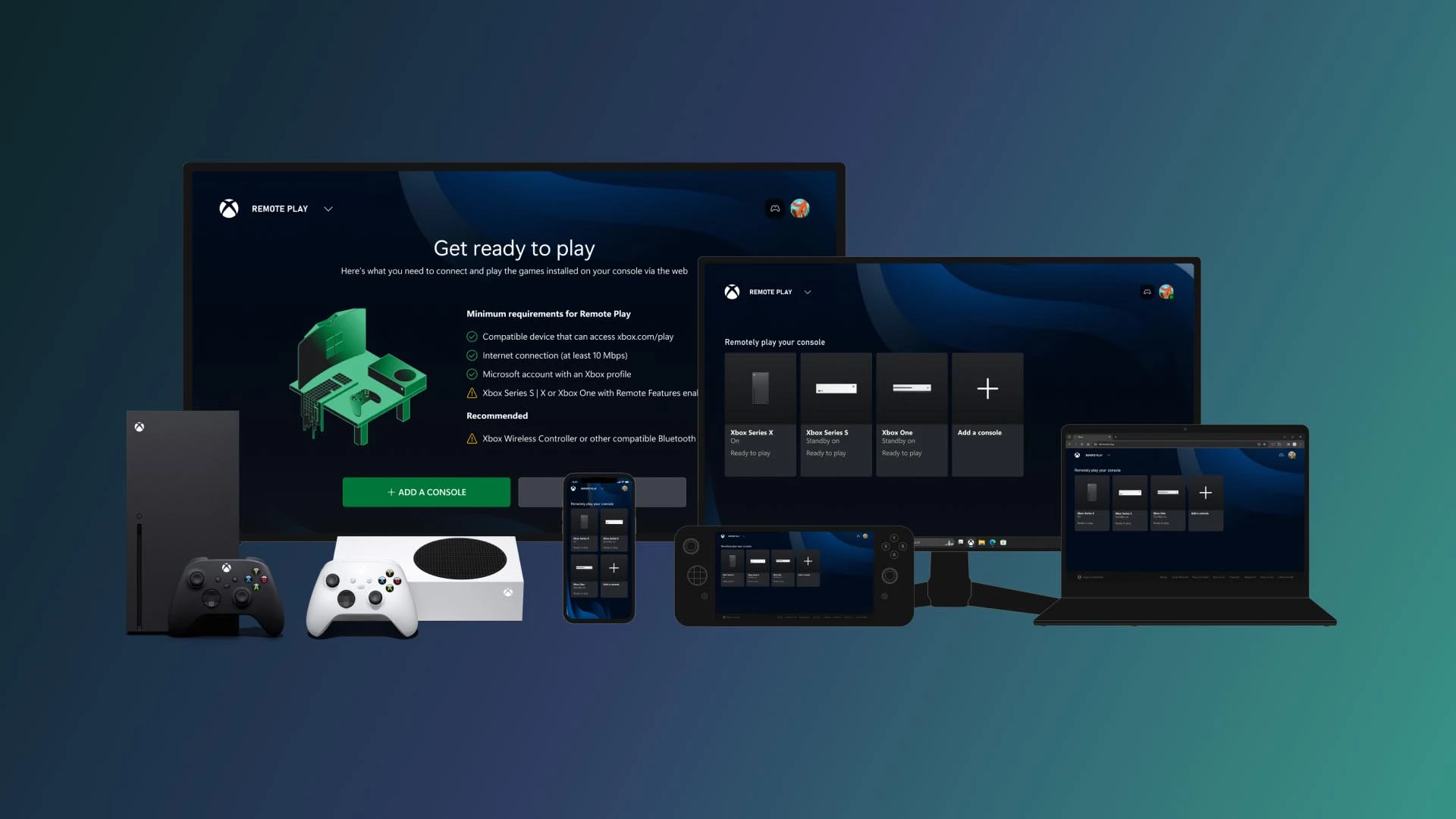
Xbox lists 10 Mbps download speed over 5 GHz Wi-Fi or mobile data for its Remote Play setup. Check the network on the device you're taking with you, especially if it will switch from Wi-Fi to mobile data. Once the console picture appears in the browser, try moving through the Xbox home screen with your controller. That checks both the video stream and your controls before you open the game.
Check the connection before you leave
Try connecting while you're near the console first. For Portal, Sony recommends wiring the PS5 to the router if you can, using 5 GHz Wi-Fi on the handheld and aiming for a connection of at least 15 Mbps. With your PS5 on Wi-Fi, start with both devices on the same network. If you're planning to leave the PS5 in rest mode, try a second connection after putting it to sleep so you can check that it wakes over the network.
For a missing console, check that it's online, the remote setting is still enabled and the device is signed in to the same account. When you can control the console home screen, open GTA VI from there once the game is available and installed. To end a Portal session, open the quick menu and choose Disconnect. You can select Put the connected PS5 in rest mode before disconnecting if you want it ready to wake again.
Sources
Where this story comes from, and where you can check it.
Official sources
- Rockstar GamesPre-Load Grand Theft Auto VI Now ↗
- PlayStation SupportHow to use Remote Play on your PS Portal ↗
- PlayStationPS Remote Play ↗
- PlayStation SupportPS Remote Play on PC and Mac ↗
- XboxXbox Remote Play ↗
- Xbox WireXbox April Update: Buy Games with the Xbox App on Mobile, Stream Your Own Game on Console, and More ↗
- Microsoft LearnWeb Content Test Application (CTA) overview ↗