To share Grand Theft Auto VI with another account on your console, enable Console Sharing and Offline Play on PS5 or set your Series X or S as your Home Xbox. Make the change while signed in with the account that owns the digital game, then switch to the account that will play it. This covers the announced 19 November 2026 launch. GTA 6 access details may change at release.
Choose the PS5 your household plays on
Pick the PS5 that the other account will use before changing anything. Your account can enable Console Sharing and Offline Play on one PS5 at a time. PlayStation enables it by default on the first PS5 you use to sign in, so check the setting on that console before moving it. When you move sharing to another PS5, users of the previous console lose the shared access granted by your account.
On the PS5 you want to share, sign in to PlayStation with the account that bought GTA 6. Open Settings > Users and Accounts > Other > Console Sharing and Offline Play and select Enable. If your account already shares games on a different PS5, open the same menu on that console and select Disable first.
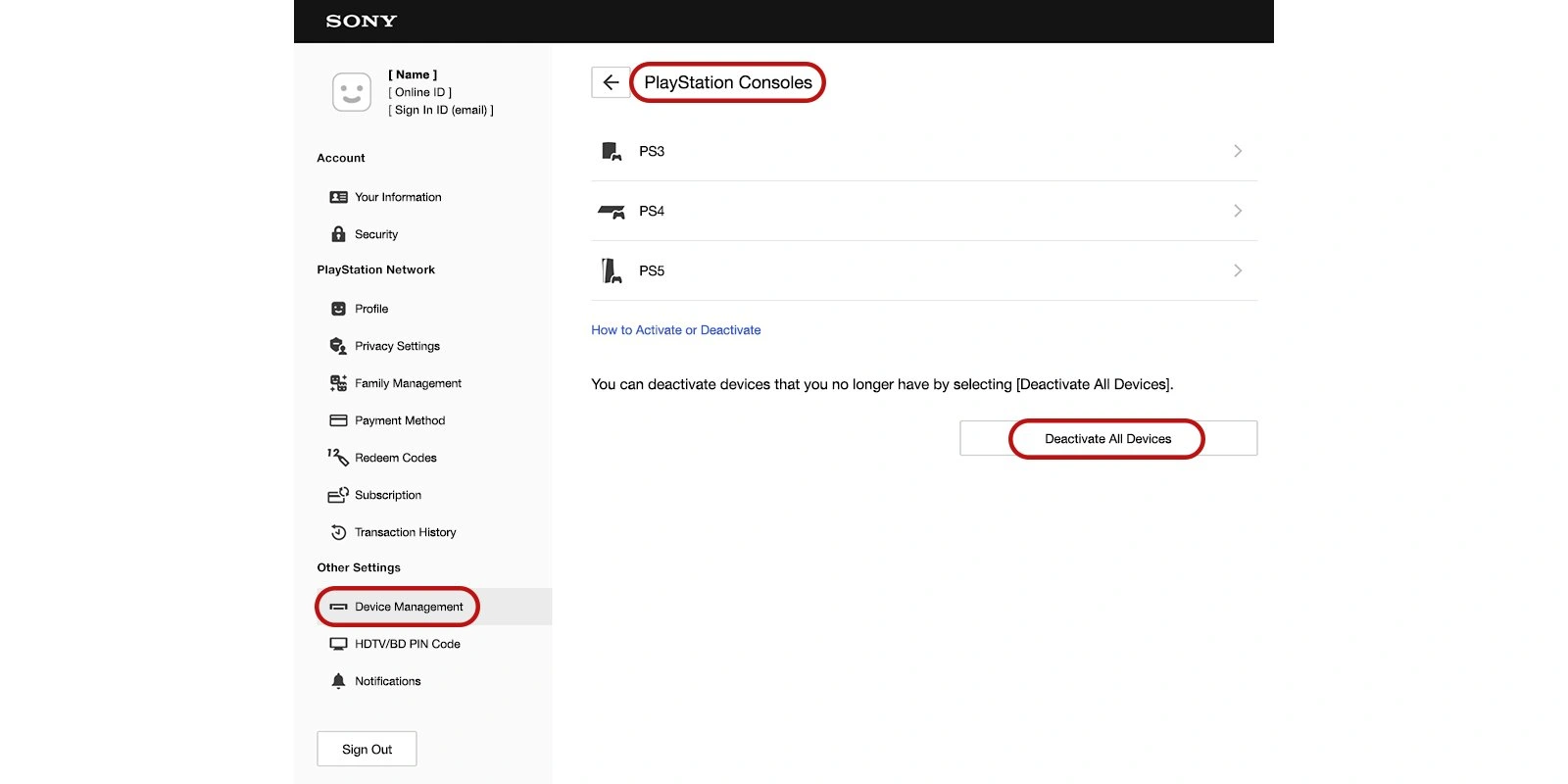
If you no longer have the old console, sign in to PlayStation Account Management and choose Device Management > PlayStation Consoles > Deactivate All Devices. This affects every console linked to your account and you can use it once every six months. Return to the PS5 you want to share and enable Console Sharing and Offline Play there.
Download GTA 6 to the shared PS5 from the purchasing account. Once the game is installed and released, switch to the other user's own profile and start GTA 6 from the games home screen. You can check the sharing setting before launch with another downloaded game that the purchasing account owns. Open that game from the second profile to check that the shared licence is working on this PS5.
Set your shared Series X or S as Home Xbox
Sign in on the Series X or Series S with the Microsoft account that owns GTA 6. From the Xbox guide, go to Profile & system > Settings > General > Personalisation and open My home Xbox. Choose Make this my home Xbox. This assigns your account's device licences to the selected console. Make the change on the Xbox where the other person will actually play, because moving the designation moves those shared licences with it.
Install the game on that Xbox. At release, sign in with the other player's own profile and open the installed GTA 6 tile. On the Home Xbox, the purchasing account can be signed out while another profile uses its shared game licence. You can use that difference to check the setup ahead of launch: sign out of the purchasing account and open another digital game it owns from the second profile.
Check the licence if the second profile cannot play
Start by trying the installed copy from the purchasing account once GTA 6 is available. If you see a padlock on PS5, sign in with that account, highlight the game, press the options button and select Restore License. You can also find Restore Licenses under Settings > Users and Accounts > Other. Restoring the licence leaves your save data intact. Check that Console Sharing and Offline Play is enabled, then try again from the second profile.
On Xbox, reopen My home Xbox while signed in as the purchaser and check the designation for the console in front of you. An account's digital games can be shared on another Xbox while that account is signed in and online. To check whether the console itself is sharing the licence, sign the buyer out and retry from the other profile on the Home Xbox. If you plan to play away from the console, you can also set up GTA 6 Remote Play.
Sources
Where this story comes from, and where you can check it.
Official sources
- PlayStation SupportGrand Theft Auto VI support ↗
- PlayStation SupportHow to turn on PS5 Console Sharing and Offline Play ↗
- PlayStation SupportHow to deactivate a PlayStation console ↗
- PlayStation SupportHow to restore licenses on PlayStation consoles ↗
- Microsoft LearnProduct sharing model for games ↗
- Xbox SupportHow home Xbox and game sharing work ↗