Set up three monitors in Euro Truck Simulator 2 by grouping them into one wide display in Windows and setting r_multimon_mode to 2. The display group gives the game a surface to draw on. Mode 2 gives each screen its own view and puts the HUD on the centre monitor. Check the group first if the game opens on one screen, and check the projection if it fills all three but the side views look stretched.
Group the displays in Windows
Start with three equal landscape displays lined up side by side. On a supported GeForce setup, open NVIDIA Control Panel and go to 3D Settings, then Configure Surround. Tick Span displays with Surround and choose Configure. Select the three-wide layout, drag the display icons into their physical order and pick a shared resolution and refresh rate. A mixed set of monitors may offer a lower common resolution or refresh rate than your centre screen can use by itself.
On a supported Radeon setup, extend the desktop across the three screens in Windows first. In AMD Software, search for Display and open Display Settings, then select Quick Setup under AMD Eyefinity. If the screens are out of order, open Display Arrangement and choose Rearrange Displays. Drag a window across the desktop to check the order. Three 1920 × 1080 panels in one horizontal group give you a 5760 × 1080 mode. Leave driver-level bezel correction off for the initial setup.
Enable the three cab views
With the display group active, open the game's graphics options and select the group's combined resolution. The built-in triple-screen preset requires a combined aspect ratio of at least 2.5:1. Apply the resolution and close the game. Open the Euro Truck Simulator 2 folder in Documents, or in OneDrive's Documents folder if Windows keeps your files there. Make a backup of config.cfg, then open the original in a plain-text editor such as Notepad.
Find the line that starts with uset r_multimon_mode and change its quoted value to "2". Save config.cfg with its existing filename and relaunch. Load into the cab and look for a forward view in the middle and an angled view on each side. The centre screen carries the interface in both mode 1 and mode 2, so use the view through the windows to check that the three separate projections are active.
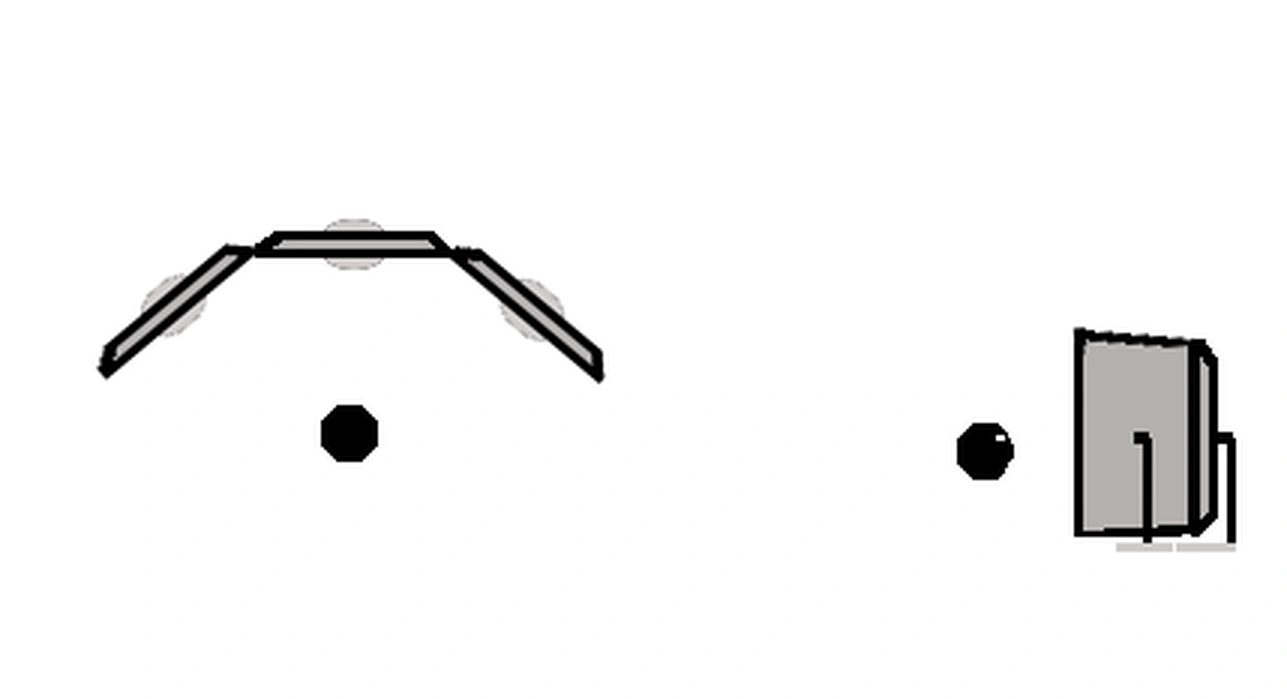
Check the symptom before adjusting the view
If the game fills only one monitor, check whether Surround or Eyefinity still shows all three in the group. Then check that the game is using the combined resolution. If the picture reaches both outer panels but stretches across them, close the game and recheck r_multimon_mode in the global config.cfg. If you have a centre screen of a different size or side screens in portrait, SCS documents a custom layout in mode 4. That mode still needs a single wide display surface.
If the road or dashboard appears to tilt across the side screens, close the game and try setting g_interior_camera_zero_pitch to "1" in the same file. Park on level ground and compare the joins with the cab facing straight ahead. If the panel frames hide part of the picture, r_multimon_border_fov_left and r_multimon_border_fov_right let you account for each gap in the game. Change one setting at a time so you can see what it does at the join.
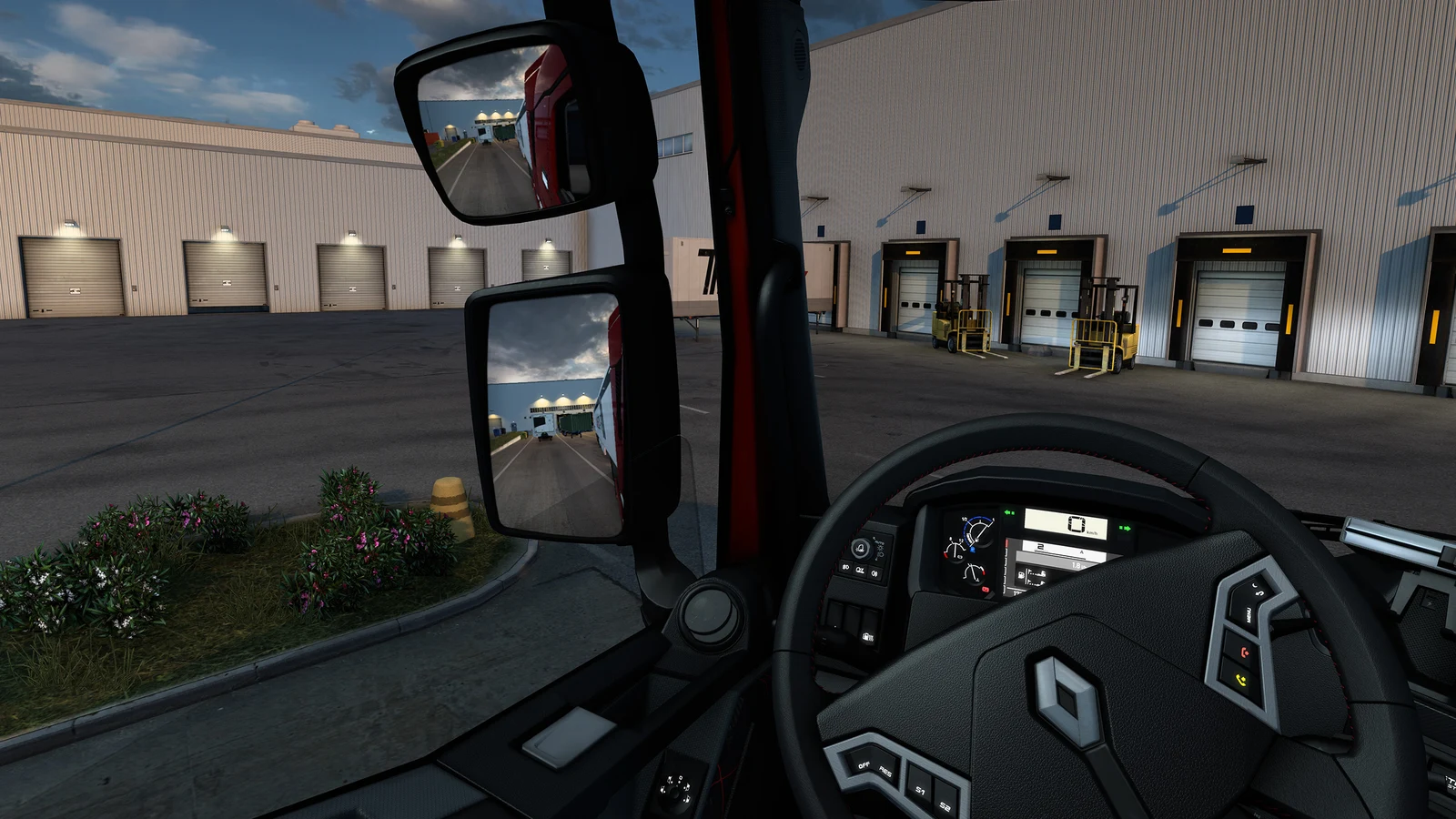
For a short test drive after you have lined up the views, pick a manoeuvre from Driving Academy and watch the side mirrors as you turn. To go back to one screen, close the game, restore your config.cfg backup and turn off Surround or discard the Eyefinity group. When you relaunch, pick the resolution of your main display if the game prompts you to change it.
Sources
Where this story comes from, and where you can check it.
Official sources
- SCS SoftwareEuro Truck Simulator 2 | Multi-monitor support ↗
- SCS SoftwareDocumentation/Engine/Configuration variables ↗
- SCS SoftwareDocumentation/Engine/Game user path ↗
- NVIDIATo configure my displays for Surround ↗
- NVIDIAGettings Started with NVIDIA Surround ↗
- AMDConfigure Multiple Displays to Run in AMD Eyefinity Mode ↗
- SCS SoftwareEuro Truck Simulator 2: 1.62 Update Release ↗