If Counter-Strike 2 FPS is capped at or just below your monitor's refresh rate, first check whether G-Sync, V-Sync and NVIDIA Reflex are all enabled. That combination deliberately limits FPS; it can be normal behaviour rather than lost performance. This Windows PC guide applies to the live client checked on 5 October 2026, following Valve's 2 October update. It covers NVIDIA setups, not an AMD configuration or a measured performance fix.
Separate an intentional cap from low FPS
Valve recommends combining G-Sync, V-Sync and Reflex when all three are available, and explicitly says the result is a frame-rate limit below the display's refresh rate. If you enabled its startup recommendation, that may explain a lower ceiling. Do not expect the FPS counter to equal the panel's advertised Hz, and do not treat a particular number from another player's PC as your required target.
There is a trade-off. NVIDIA's system-latency guide says this arrangement avoids tearing while keeping latency low, but has slightly higher latency than running uncapped with Reflex. It is a choice between presentation and the uncapped route, not proof that one setup wins on every PC. PCGamesN's Reflex explainer also separates system latency from network latency: these display settings will not repair ping or packet loss.
Check the refresh rate Windows is using
On Windows 11, open Start > Settings > System > Display > Advanced display. Select the monitor you play on and inspect its current refresh rate, then use Choose a refresh rate to select the supported rate you want. Check the resolution too: Microsoft warns that rates marked with an asterisk change resolution. Photograph or note the old values before changing them so you can restore your previous setup.
In windowed and fullscreen-windowed CS2, Valve says the operating system determines refresh rate. A high-refresh monitor running in a lower-rate mode needs that setting corrected before you diagnose the FPS ceiling. If the expected rate is absent, consult your monitor's manual for supported resolution, input and cable combinations; do not force a custom mode. Microsoft also notes that Windows 11 Dynamic Refresh Rate can limit some games. If enabled and implicated, disable DRR and retest, then restore it if nothing changes.
Enable G-Sync for the display and mode
In NVIDIA Control Panel, open Display > Set up G-SYNC and tick Enable G-SYNC/G-SYNC Compatible. Choose Full screen mode or Windowed and full screen mode to match how you play. Select the gaming display. Where the display-specific checkbox appears, enable settings for that selected model. NVIDIA's instructions also require a capable display connected, enabled and configured as the primary display; check Monitor Technology under Manage 3D Settings is G-SYNC/G-SYNC Compatible.
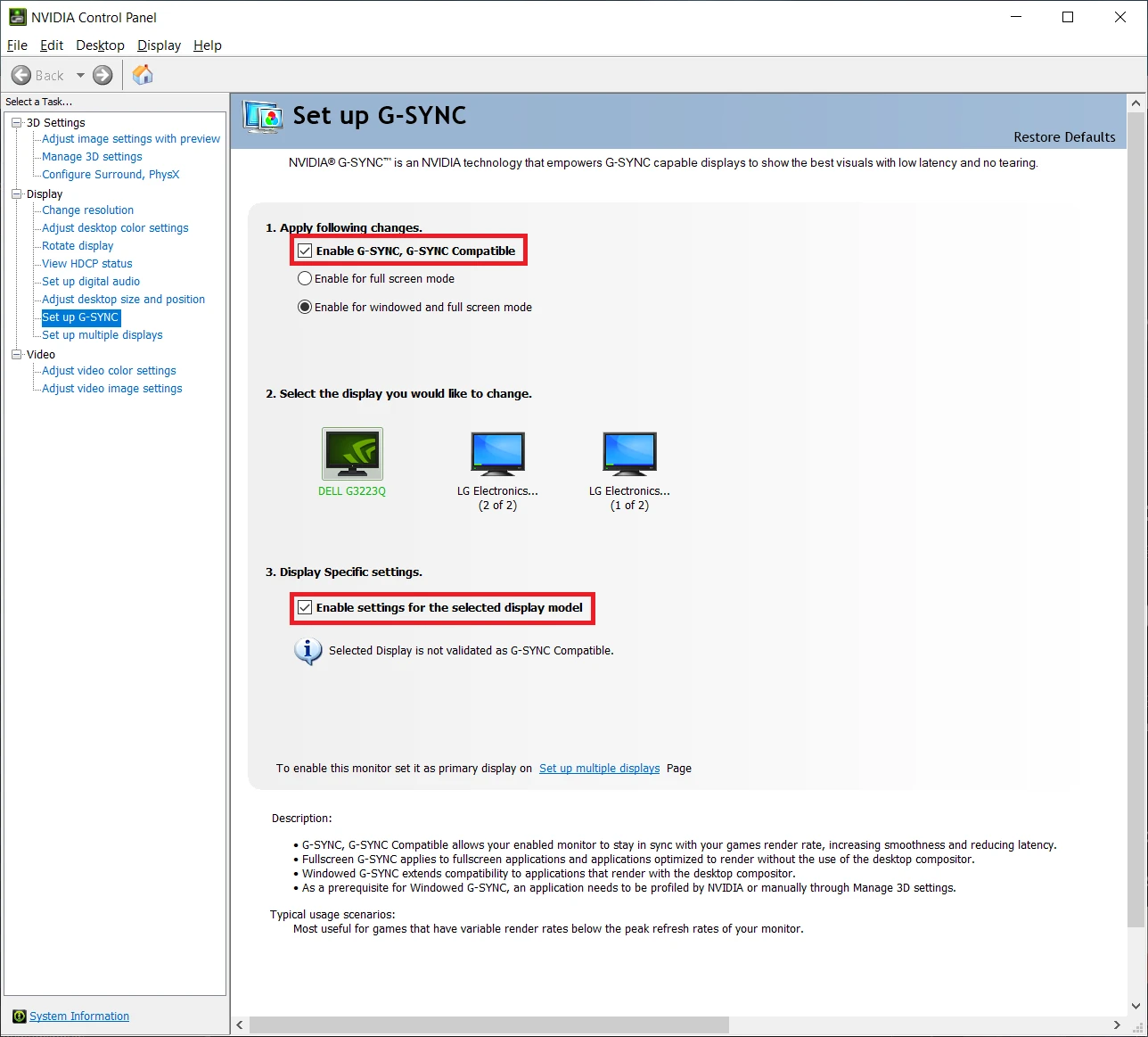
If Set up G-SYNC is missing, stop this branch and check the graphics/display connection against the hardware manufacturer's documentation. The guide depends on the feature actually being available. If windowed play develops visual glitches, choose the full-screen-only G-Sync option and use fullscreen CS2 for the comparison. Valve warns about that windowed issue and requires restarting CS2 after G-Sync changes. Keep the previous mode recorded for rollback.
Choose the CS2 sync settings deliberately
Open Settings > Video > Advanced Video and set NVIDIA Reflex Low Latency to Enabled. For the synchronised route, also enable the game's V-Sync setting; NVIDIA's older official screenshot labels it Wait for Vertical Sync. The screenshot below shows where Reflex lives, but has V-Sync disabled: it is a historical menu reference, not the complete configuration to copy. Valve's startup Apply Changes option can apply its recommendation automatically when offered.
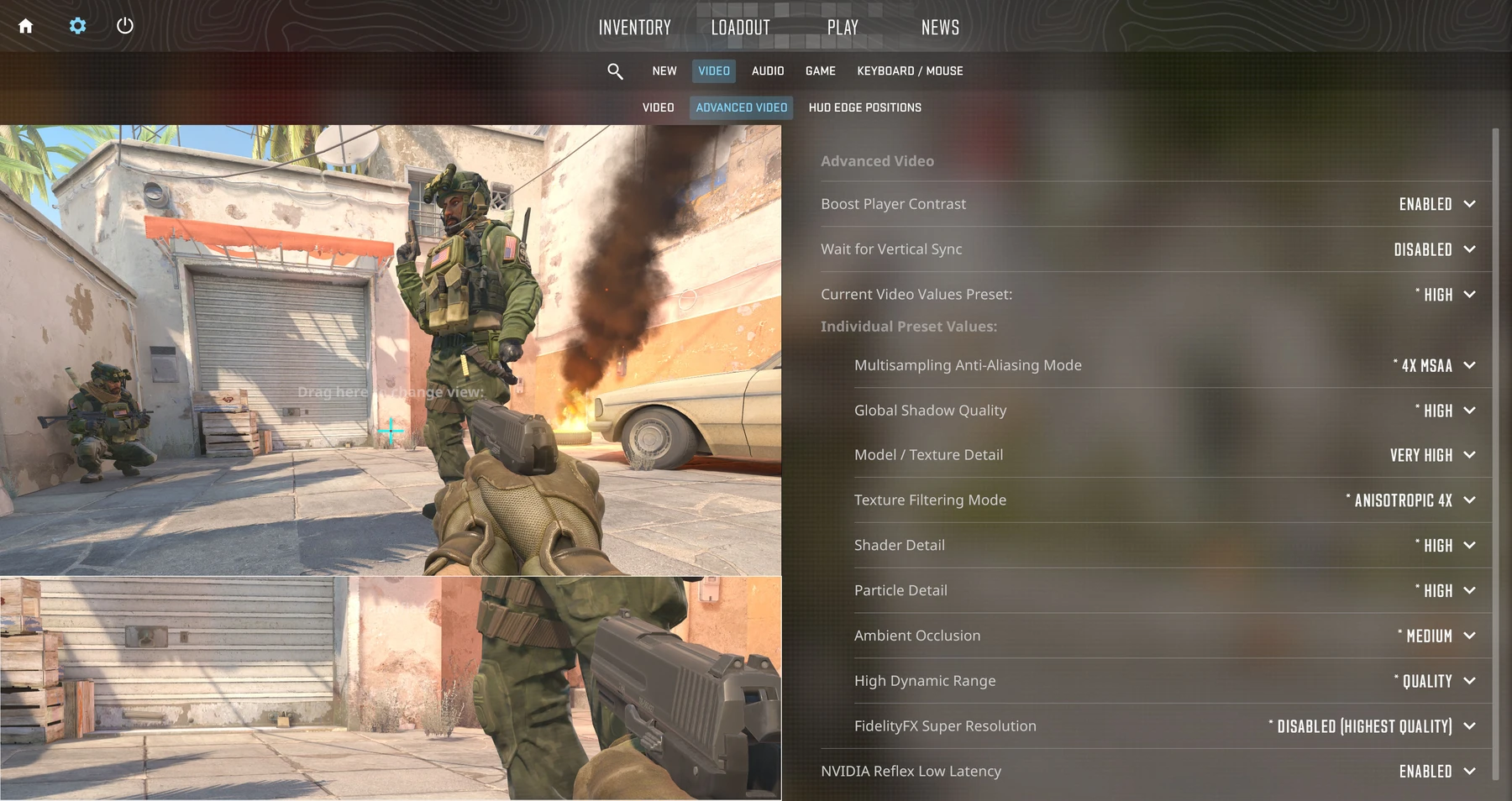
Enabled + Boost is optional. NVIDIA says it may reduce latency further at the cost of extra power and a slightly lower frame rate; start with Enabled rather than assuming Boost is an FPS upgrade. Driver Low Latency Mode is not a second additive Reflex setting: NVIDIA says in-game Reflex overrides that functionality when both are active. There is no need to stack tweaks simply because the counter sits below refresh rate.
Verify the result before changing more
Use NVIDIA Control Panel's Display menu > Show indicator for G-SYNC to confirm it is active in the game. The wording may include G-SYNC Compatible instead. Restart CS2, load a safe practice session and compare motion with the previous setup. Record the resolution, refresh rate, display mode and sync choices. The indicator verifies G-Sync engagement; an FPS counter alone does not measure input latency, and this guide supplies no benchmark target.
If you prefer the uncapped route, record the current settings, disable in-game V-Sync and check any forced driver V-Sync setting too, while leaving Reflex enabled. NVIDIA recommends that route for players willing to accept tearing. Restore the previous values if the visual trade-off is worse. If FPS remains limited or drops substantially during fights, report it as a separate symptom with your GPU, driver version and settings; the intentional sync ceiling does not explain every performance problem.
Sources
Where this story comes from, and where you can check it.
Official sources
- Steam SupportCS2 - Video Settings Recommendations ↗
- Microsoft SupportChange the refresh rate on your monitor in Windows ↗
- NVIDIATo set up G-SYNC ↗
- NVIDIATo know if G-SYNC is enabled for your game ↗
- NVIDIAHow To Reduce Lag - A Guide To Better System Latency ↗
- NVIDIACounter-Strike 2 with NVIDIA Reflex and GeForce RTX 40 Series GPUs - The Lowest System Latency & Highest FPS ↗
- Counter-StrikeCounter-Strike 2 Update ↗