Repair a standard weapon in ARC Raiders by opening your Inventory, selecting the gun, then choosing More Actions and Repair. Before spending the materials, check whether you want its next upgrade: upgrading also restores part of its durability. You can use that restoration first, then repair whatever condition you still need before your next raid.
This route applies to standard weapons on PC, PS5 and Xbox Series X|S, checked against Hotfix 2.4.1, released on 5 November 2026. Amplified weapons, introduced with Frozen Trail on 8 October, use Amplified Fragments for repairs. Keep those separate when checking your supplies; the ordinary weapon materials below are your starting point for standard guns.
Open the weapon's Repair action
- Return to Speranza and open your Inventory.
- Select the damaged weapon you intend to take into your next raid.
- Open More Actions, then select Repair.
- Check the resources required for that weapon before committing the repair.
Budget for the gun you have selected. Repair ingredients vary between weapons, so use its own requirements rather than saving the materials you used on a different model. Keep enough of those resources available for maintenance as well as crafting: spending them all on your next item leaves you without the supplies needed to restore the weapon already in your loadout.
After repairing, inspect that same weapon's durability before heading Topside. Use the change in its condition as your success check, then restock ammunition separately. Repairing addresses wear; ammunition is another part of preparing your loadout. Make the final check on the gun you will actually carry, particularly when you have several copies of the same weapon in your inventory.
Use an intended upgrade before another repair
Upgrading a weapon restores 25% of its maximum durability. That partial restoration arrived in the Riven Tides update, version 1.26.0, on 28 April 2026. Check your upgrade options before repairing a gun you already planned to improve. After the upgrade, inspect its new condition and decide whether you still need the separate Repair action before taking it out.
Treat the upgrade as a partial refill, rather than assuming it returns a worn weapon to full condition. The restoration is based on maximum durability, not a quarter of the durability you have lost. An upgrade and a repair also serve different purposes: compare the resources you would spend on the upgrade with the repair requirements before choosing how to prepare that particular gun.
Check recovered guns before equipping them
Inspect weapons you bring home before swapping them into your loadout. A gun recovered Topside can already have substantial wear, and being knocked out also reduces weapon durability. Its name or rarity alone tells you too little about its remaining condition. Start with the durability shown on the individual item, then choose between repairing it, taking an intended upgrade or using another gun you already have ready.
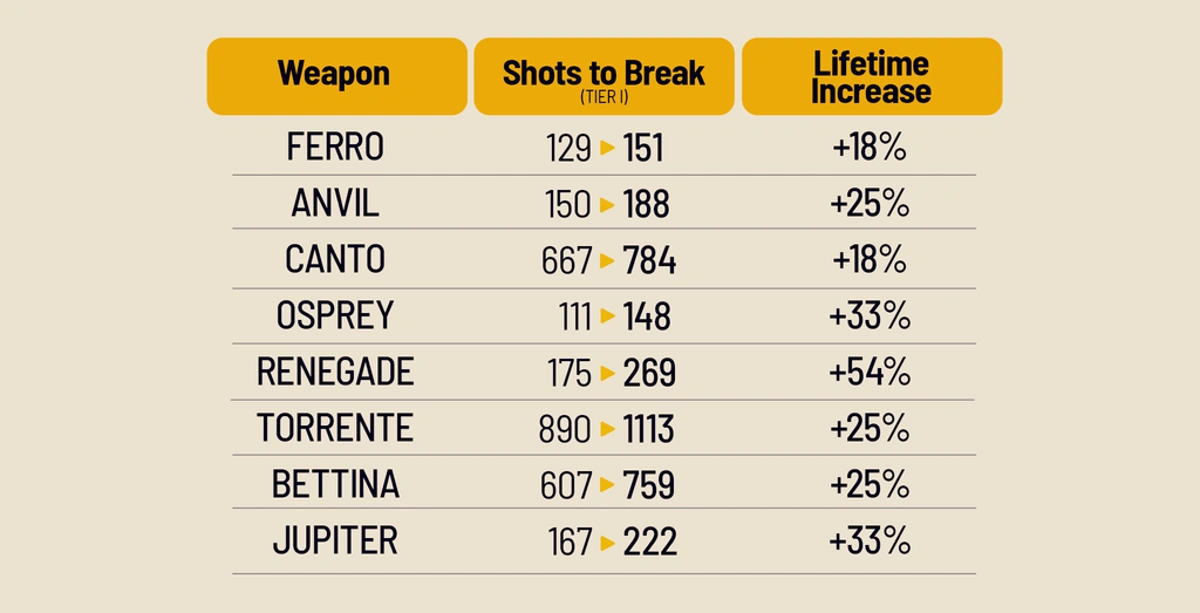
Use the current weapon rather than an old rarity-wide rule to judge upkeep. After the April overhaul, patch 1.29.0 made targeted lifetime improvements to weapons that were wearing out too quickly. A percentage from the earlier overhaul is therefore a poor substitute for checking your own gun. The chart shows that later adjustment; its figures describe that patch's changes, rather than a fresh performance test.
Separate missing supplies from a missing action
If you cannot complete a standard repair, check the selected weapon and its required resources first. For an Amplified weapon, check for Amplified Fragments instead. Keep your diagnosis tied to the item: changing weapons can change the materials involved. Once you have used the appropriate repair or upgrade, reopen the weapon's condition and confirm it is ready before committing it to the next raid.
Sources
Where this story comes from, and where you can check it.
Official sources
- Embark StudiosGearing up ↗
- Embark StudiosRiven Tides - Patch Notes 1.26.0 ↗
- Embark StudiosPatch Notes 1.29.0 ↗
- Embark Studios2.0 Frozen Trail Update ↗
- Embark StudiosHotfix 2.4.1 ↗