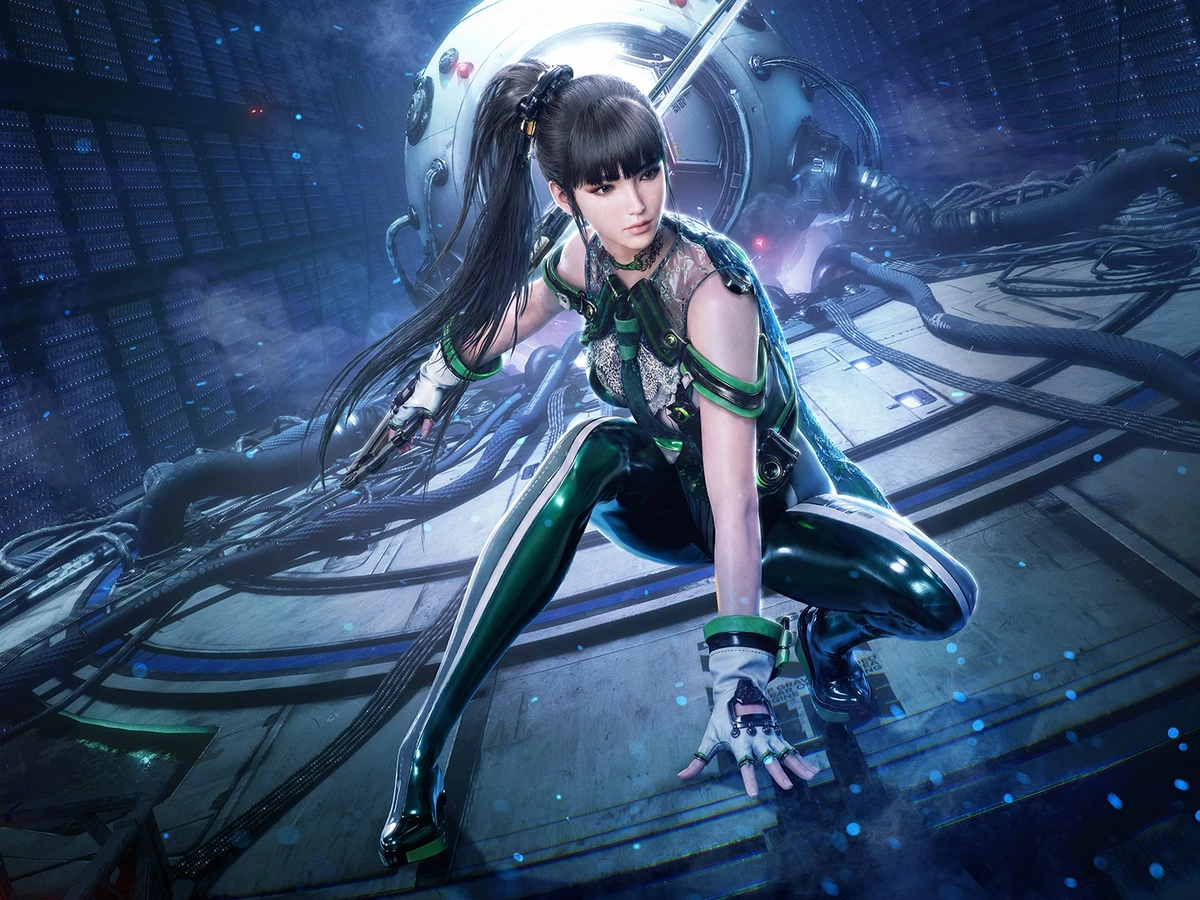
Open Display in Stellar Blade on Nintendo Switch 2 and set Frame Generation to Off. The toggle comes with the Switch 2 launch update from 5 November 2026. If you played the demo and looked for the option there, use the updated full game for this setting.
Check for the update if the toggle is missing
Connect your Switch 2 to the internet and highlight Stellar Blade on the HOME Menu. Press + or - to open the software options, then choose Software Update followed by Via the Internet. Install any available update, then open the game and check Display again. Use this same check if you started the full game from a cartridge before connecting the console to the internet.
Compare both settings in the same spot
With Frame Generation off, pan the camera somewhere you can see fine edges around Eve or the scenery. Frame generation inserts extra frames between the ones the game renders, so switching it off can make camera movement look less smooth. Keep your Switch 2 in the same mode, handheld or docked, for both passes so you can compare the effect of the setting itself.
To switch back, return to Display and set Frame Generation to On. Repeat the same camera movement, then leave the toggle in the position you prefer. You can return to Display to check which option you selected.
Sources
Where this story comes from, and where you can check it.