To play Dandori Battles with one copy of Pikmin 4, open Dandori Battle on the host's Switch 2 and share the game locally or through GameChat. This covers the 12 November 2026 release of Pikmin 4 for Switch 2 with Dandori Academy. A friend on the original Switch can join over local wireless. If you're playing over the internet, you'll both need a Switch 2.
Choose who hosts the battle
Give the hosting job to the player with the full Switch 2 version of Pikmin 4. One copy is enough for a two-player Dandori Battle because the host shares the session with the guest. If your friend has an original Switch, plan to meet in person and use local wireless. If you both have a Switch 2 and are in the same room, you can use the local route too.
Before you start, update both consoles. From HOME, open System Settings, scroll to System and choose System Update. On the host's console, highlight Pikmin 4 on HOME, press + or -, then choose Software Update followed by Via the Internet. Launch the game, select Dandori Battle from the title screen and choose P1 vs. P2. That's the competitive mode where you face another player. If you're looking for the solo exams and medals, open Dandori Academy instead. You can also check which Academy results earn Pikmin Bloom rewards.
Join a nearby Dandori Battle
On the Switch 2 running the game, choose GameShare (Local Users), then OK. On the guest console, go to HOME and select the GameShare icon. Choose Join GameShare, then A Local User, and select the user who'll be playing on the guest system. When the host's session appears in the search results, select it and choose Join GameShare. The host selects Start once the guest has joined.
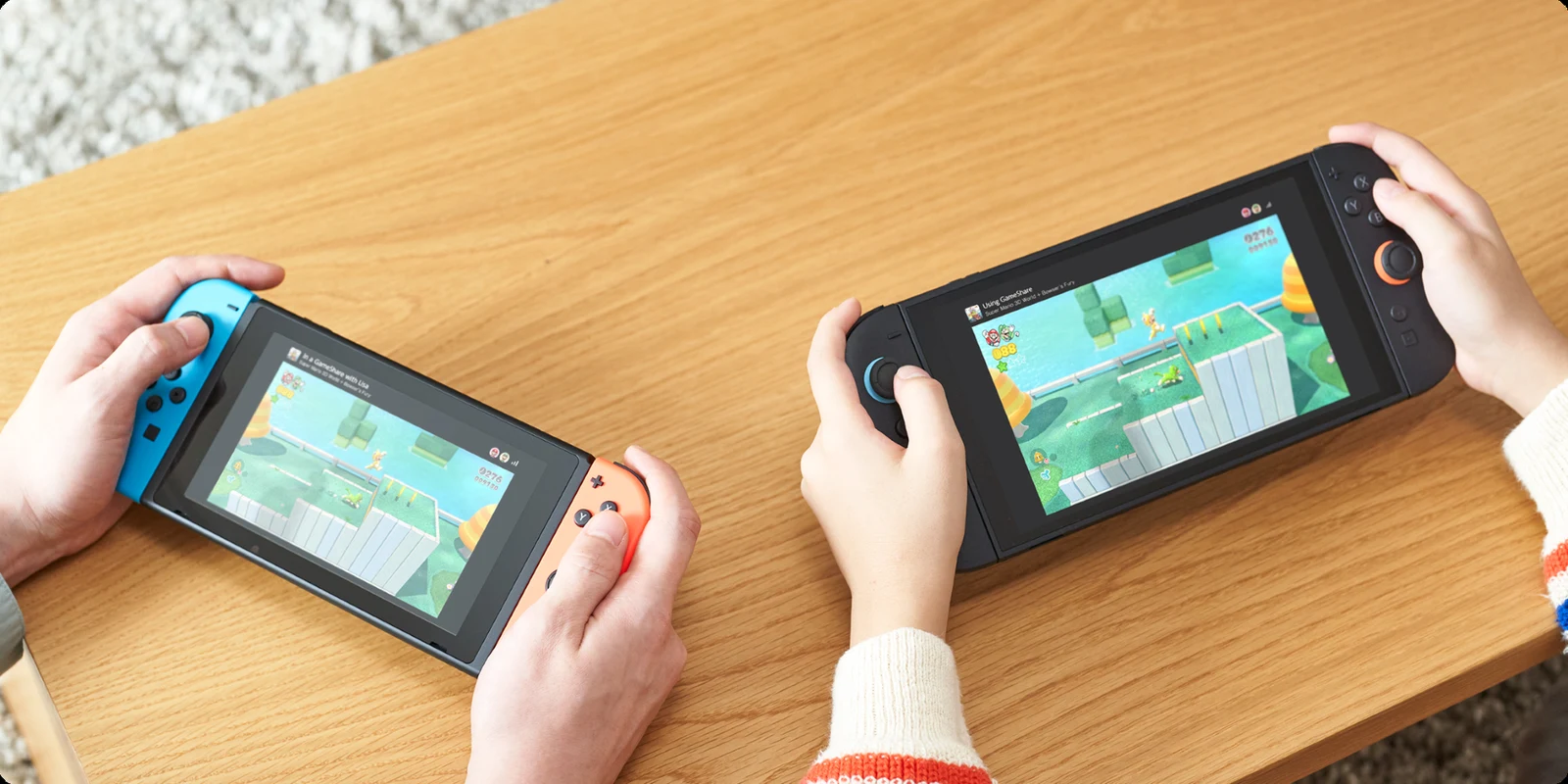
Keep both systems nearby while the guest searches. If the session is missing, check that the host has opened a local GameShare session and that the guest is searching under A Local User. To play on one screen, choose P1 vs. P2 and Play without GameShare, pair the second controller when prompted, then pick a stage and select Start Battle.
Invite a friend over GameChat
Set up GameChat on both Switch 2 consoles before you try to share. You'll each need an internet connection, a Nintendo Account and access to GameChat. The host can press the C Button, select their user and choose Create a New Chat to invite the other player from their friends list. Once you're both in the room, the player with the game chooses Dandori Battle, P1 vs. P2, then GameShare (GameChat). Select OK, choose the other player and confirm with OK.
On the guest's Switch 2, press the C Button and select View GameShare Invitations, then Join GameShare. You can also open GameShare from HOME and look under A User in a GameChat Session. Once the guest has joined, the host selects Start. If you're setting up GameChat for the first time, follow the prompts to verify your phone number and approve each other for GameChat before sending the invitation.
Check that the shared battle has started
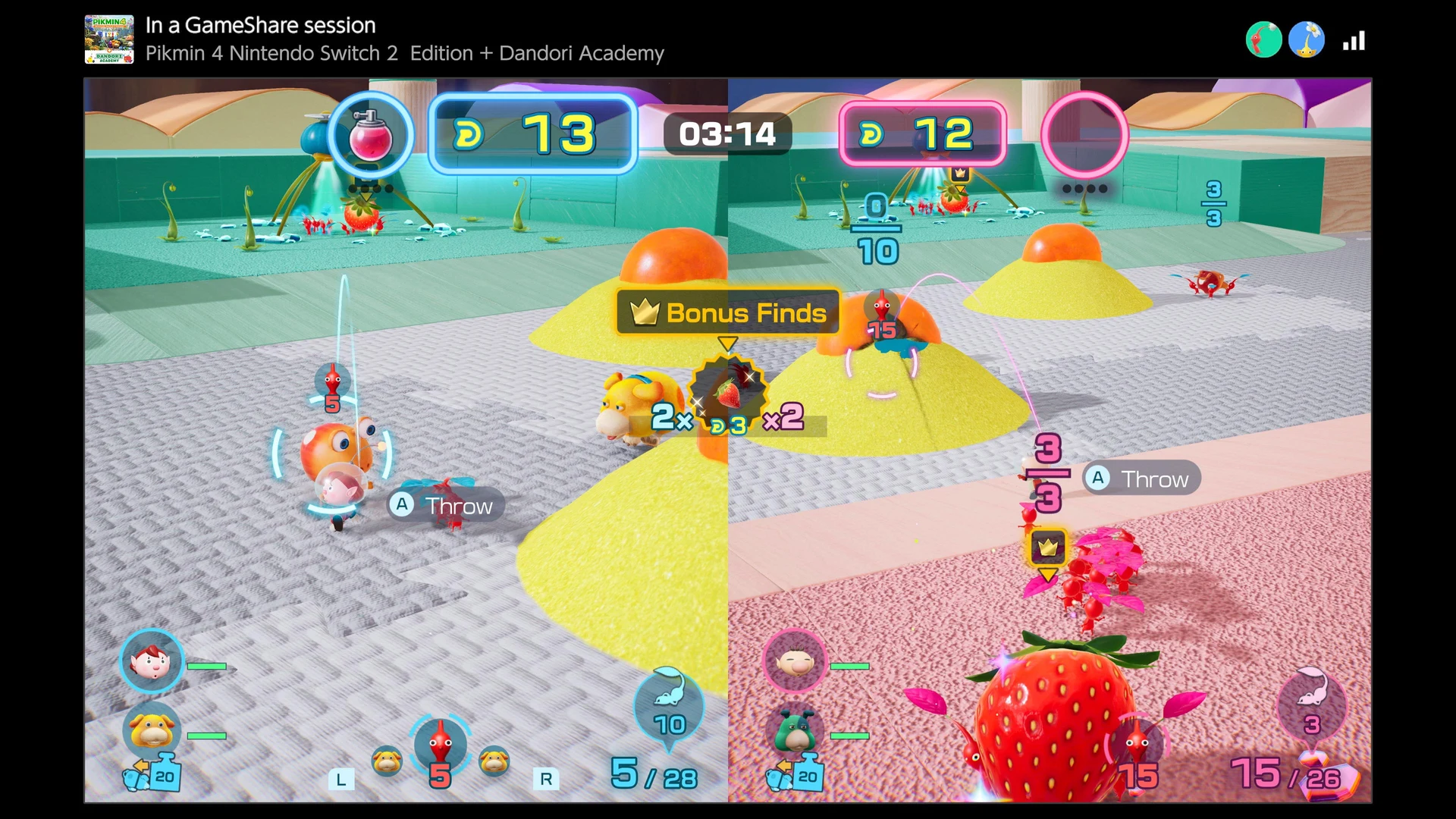
Once the session starts, the host presses A to move past the controls screen, picks an available stage and selects Start Battle. Play further into Story mode to unlock more battle stages. Look for the Dandori Battle screen with both players' scores and the match timer. On the guest's display, the GameShare banner identifies the shared copy. You can use that to check you've joined the host's session.
To finish the local session as host, press B on the stage selection screen and choose Return to Title Screen. As the local guest, press HOME and choose Close. Your access to the shared copy ends when you leave the session. To play together another time, have the player with the game open a new session and send a fresh invitation if you're playing online.
Sources
Where this story comes from, and where you can check it.
Official sources
- NintendoSee what's sprouting in Pikmin 4 – Nintendo Switch 2 Edition + Dandori Academy, available now! ↗
- Nintendo SupportHow to Play Together via GameShare ↗
- Nintendo SupportHow to Start a Multiplayer Game (Pikmin 4) ↗
- Nintendo SupportHow to Start, Join, or Leave a GameChat Room ↗
- NintendoPikmin 4 – Nintendo Switch 2 Edition + Dandori Academy ↗