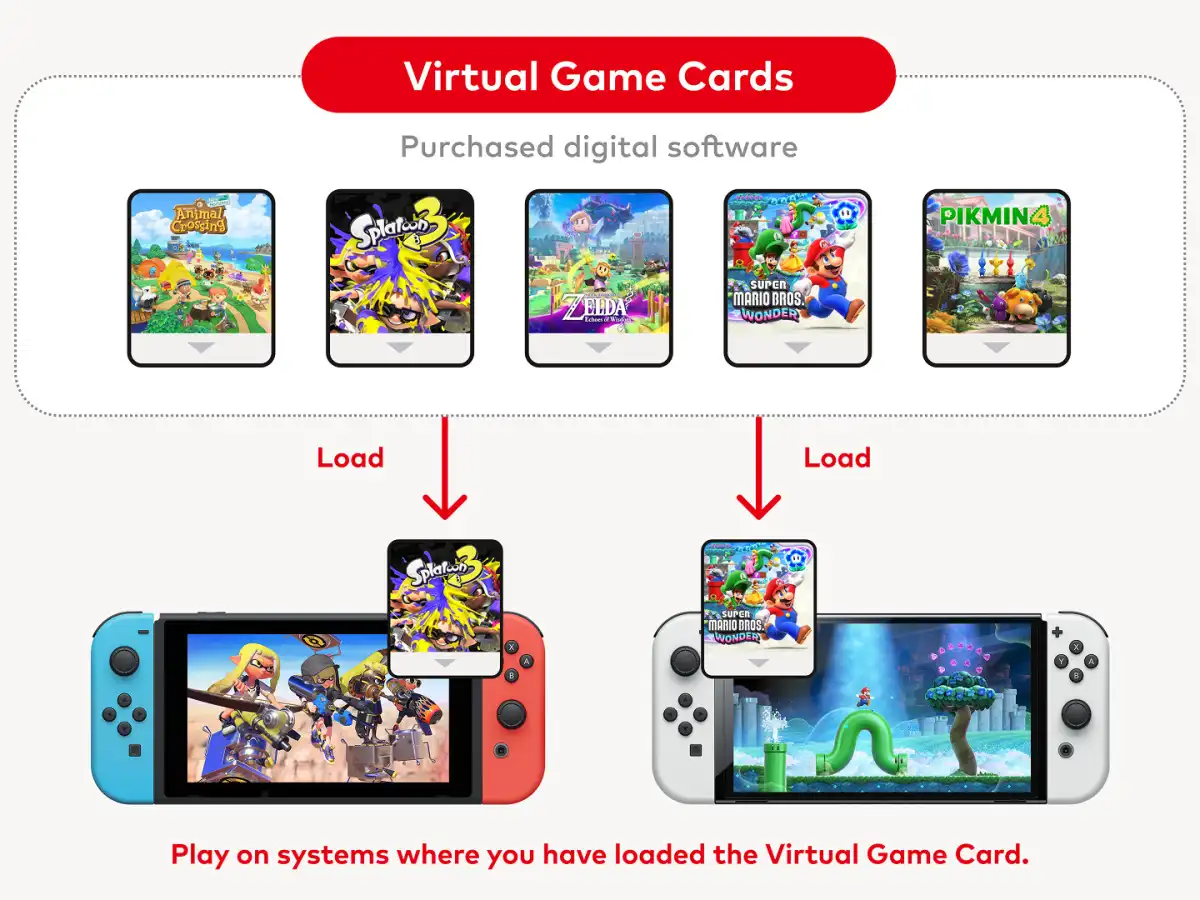
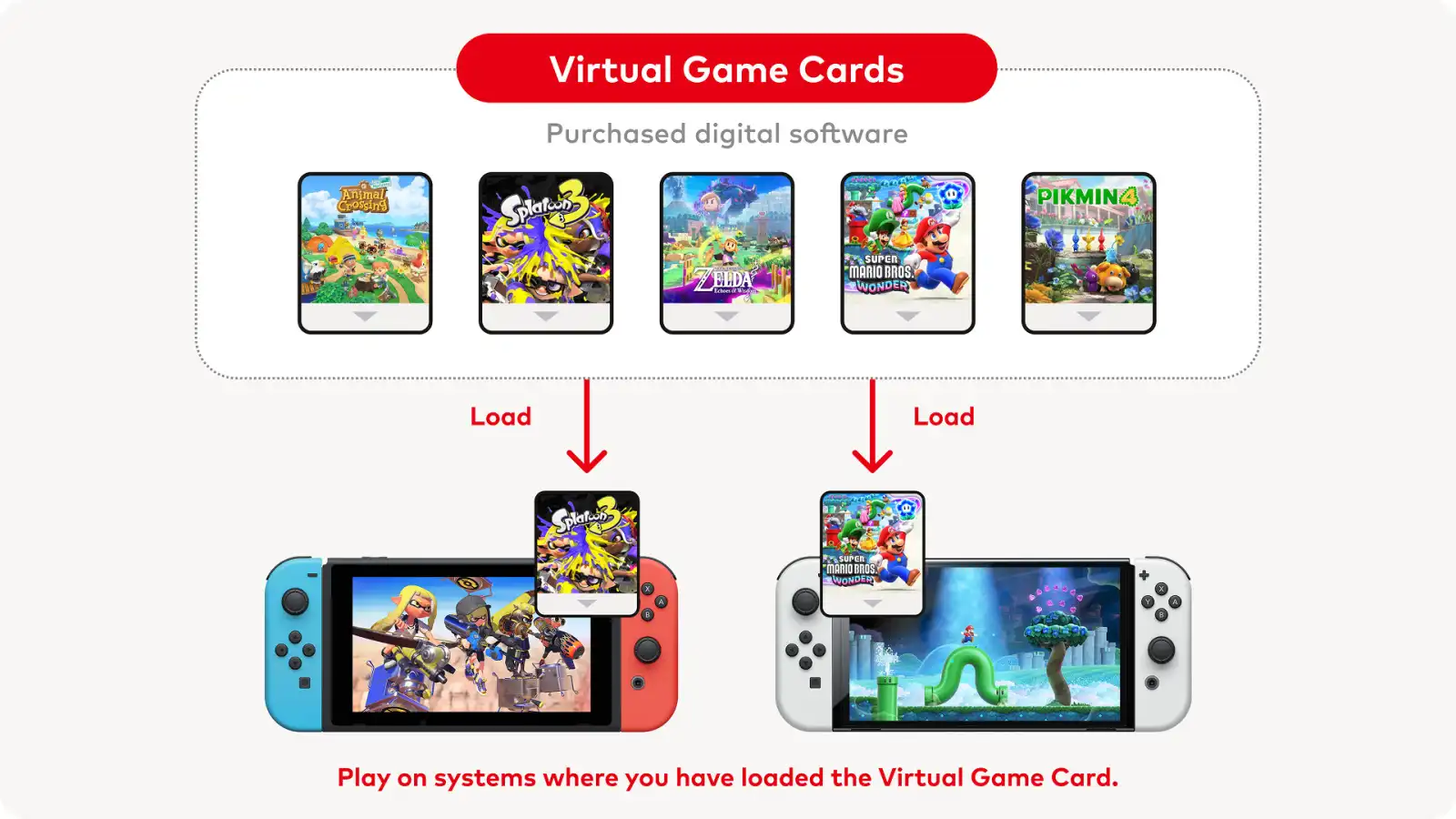
To move a Virtual Game Card to another Switch, link both consoles to the Nintendo Account that bought the game, then open Virtual Game Cards on the console you want to play on and choose Load on This System. It works between any two Switch and Switch 2 consoles, and the game plays on one of them at a time. To share with a relative on their own console, lend the card through your family group instead: they can borrow it for up to 14 days, and you can't play it while it's away.
Pick the sharing route before you load anything
Virtual Game Cards cover purchased Nintendo eShop software and DLC on Nintendo Switch 2, Nintendo Switch, Switch Lite and Switch OLED. A loaded card can be played offline after its first launch, and every user on that same console can use it. That makes loading a game to a shared household console the simple choice when several people play there. It is not a way to duplicate one purchase across two active linked consoles: Nintendo says a virtual card can be played on only one linked system at a time after the systems have been paired.
Choose between three situations. For two consoles you own and can access, link them and move the card between them. For people using the same console, load it to that console and let its local users play. For a relative using a different console, lend the card through your Nintendo Account family group. A replacement-console move is different again: Nintendo recommends a full system transfer, which moves the account, purchases and save data together. Do not confuse moving a software licence with moving a save; save data has its own transfer or cloud-backup process.
Which option fits?
- Two consoles you own
- Link them, then load the card on the system being used
- Shared household console
- Load the card there; all local users can play
- Family member's console
- Use a Virtual Game Card loan for up to 14 days
- Replacing a console
- Use Nintendo's full system-transfer route
Link your own Switch and Switch 2 first
Before pairing, update an original Switch if the Virtual Game Cards icon is missing from its HOME Menu. Put the purchasing Nintendo Account on a user profile on both consoles, bring the systems close together and connect both to the internet. Nintendo permits two systems in any combination to load cards for one account. On the second console, open Virtual Game Cards, choose the linked user, select a game and choose Load on This System. Follow the prompt to bring the existing console close, then approve Link on that original console.
Once linked, the day-to-day move is short. Open Virtual Game Cards with the purchasing account, select the game, then choose Load on This System or Load on Other System. The destination needs to be online and powered on or in sleep mode. The initial launch after loading also needs an internet connection; if the game is not installed, it starts downloading. You do not need to eject one loaded card merely to load another on the same console. The limit is about where one card is active, not how many different purchases the console can hold.
Move your saves separately
Your save data stays behind when you move a card: Nintendo ties saves to the Nintendo Account and the console, not the digital card. If you are alternating between your own systems and want the same progress, use Save Data Cloud Backup where the game supports it and you have Nintendo Switch Online, or use the console's save-data transfer. The latter removes the save from the source console. Check the game's cloud-save support before relying on the subscription route, especially for games with special save rules.
A card loaded to the destination cannot normally be used on the other linked console at the same time. If a message says the software is being played, close it on the other console before loading the card. If the other system is off or offline, turn it on and connect it before trying again. Nintendo's Online License Setting is a separate option for playing purchased downloads while connected to the internet, including on more than two consoles. It still requires a successful online check, so do not choose it for travel or unreliable connections.
Lend to family only when the limits fit
For a loan, both people need nearby consoles, internet connections and Nintendo Accounts in the same family group. On the lender's console, choose the title in Virtual Game Cards, select Lend to Family Group Member, select the borrower and confirm Lend. On the borrower's console, that person opens Virtual Game Cards with their own user and chooses Borrow. The loan can include DLC you bought, but it is a real handover: the lender cannot play the card until it returns, is returned early, or is collected.
The restrictions are easy to miss. A lender may have up to three cards out at once, while a borrower may hold only one. One console can hold only one borrowed card, and it cannot contain users from different family groups for this purpose. The loan returns automatically after 14 days, although either side can end it early. Demos, some Nintendo Switch Online member-exclusive software and some individual games may not be eligible. If the desired borrower never appears, check the family group and the Nintendo Account linked to their console rather than creating another local profile.
- Use linked consoles for your own Switch and Switch 2, not a family loan.
- Keep saves separate from the licence move: cloud backup or save transfer handles progress.
- Use family lending only when both consoles can meet locally and the lender can pause their access.
- Do not force-unlink a lost system casually; Nintendo limits that fallback to once per year.
The safe digital-sharing rule
- Your two consoles
- Link them, then load the card to the console that will play it.
- One household console
- Load the card there so every local user can play.
- Someone else's console
- Lend through the family group, accepting the 14-day and one-game limits.
Move the software licence deliberately, and deal with save data as a separate task before assuming your progress will follow.
Sources
Where this story comes from, and where you can check it.
Official sources
- NintendoVirtual Game Cards for Nintendo Switch and Nintendo Switch 2 ↗
- Nintendo SupportVirtual Game Card Guide ↗
- Nintendo SupportHow to Play Your Games Across Multiple Nintendo Switch 2 or Nintendo Switch Consoles ↗