If your addons stopped working in World of Warcraft: Midnight, check whether the author has a release for your current Retail patch. If an updated addon opens but a combat alert or tracker is still missing, check whether its author still supports that specific feature. Midnight changed what addons can do with live combat data, and you can recover many everyday displays through the game's own options.
Check whether the addon loads
Check the addon author's release page for your version of Retail WoW. If you use an addon manager, make sure it is updating the Retail installation you actually launch. An update for Classic can appear newer in a download list while targeting a different client. Install the compatible release, restart the game and check for the addon's own panel or controls before testing what it shows in combat.
If the interface throws errors, temporarily disable the suspect addon and repeat the action that triggered them. If several addons could be involved, try the default interface with addons disabled, then re-enable your updated addons one at a time. When the error returns, leave the last one disabled and check its release notes or report the error to its author. This also gives you a way to test without clearing saved profiles.
Check which combat feature went missing
An addon can load normally and still lose a feature inside a dungeon or raid. Midnight restricts how addons can process live combat information. Updated addons can still customise supported displays. The Curse of Ula'tek update, for example, gave authors a way to present filtered auras without handing over the underlying data for automated decisions. Check the feature list for the current release even if the addon itself says it supports Midnight.
If the author has removed the feature, leave your existing profile in place and set up the built-in equivalent for the job you need. Start with one display. It is easier to spot whether a meter is recording, a timeline is visible or a tracker is updating when you have only changed one thing.
Turn on the display you need
For damage or healing, go to Options > Gameplay Enhancements > Damage Meter. Choose the statistic you want to see, such as Damage Done or Healing Done, and use Edit Mode to move or resize the primary window. Try it in a short fight where you can check the results afterwards. If you also have an addon meter enabled, hide one window while you check which display you want to keep.
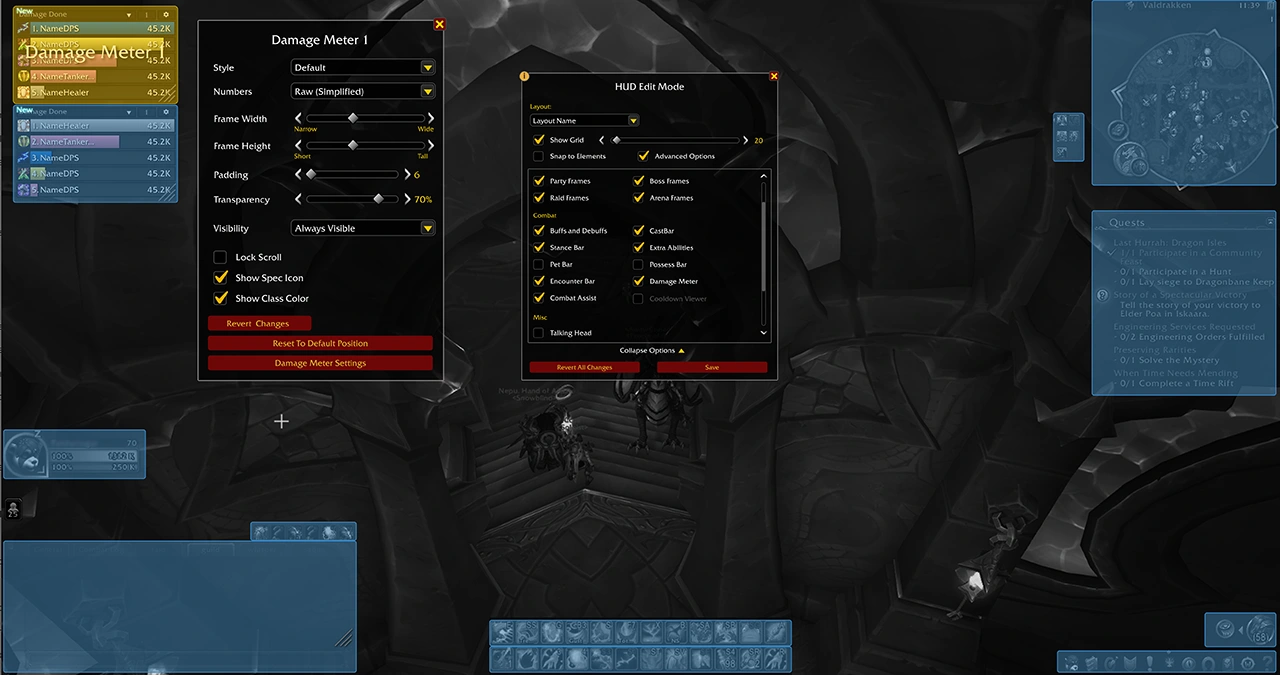
For dungeon and raid alerts, open Options > Gameplay Enhancements > Boss Warnings. The Boss Timeline puts upcoming casts in order and Boss Text Alerts bring warnings onto the screen. Adjust their scale or position in Edit Mode if they sit behind your other panels. Check their placement in a familiar encounter before relying on them somewhere new.
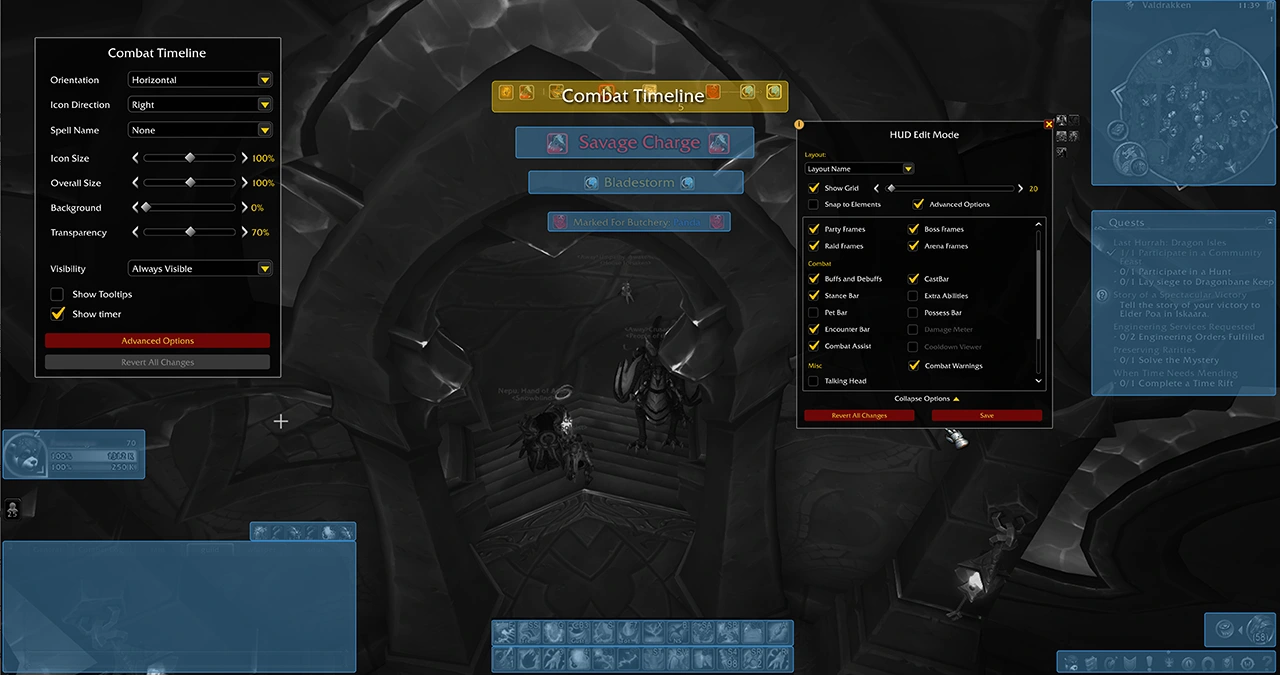
For your own spells, press Escape, open Options and find Cooldown Manager. Enable it and check the display after using a tracked ability. You can reposition its elements in Edit Mode. The manager can also track trinkets, potions and racial abilities as of Curse of Ula'tek. Start with the spell or item you actually missed, then add other alerts once you can see or hear the first one reliably.
Sources
Where this story comes from, and where you can check it.
Official sources
- Blizzard EntertainmentMidnight Pre-Expansion Content Update Notes ↗
- Blizzard EntertainmentCombat Philosophy and Addon Disarmament in Midnight ↗
- Blizzard EntertainmentCurse of Ula'tek Content Update Notes ↗
- Blizzard EntertainmentThe Cooldown Manager and Future Updates ↗