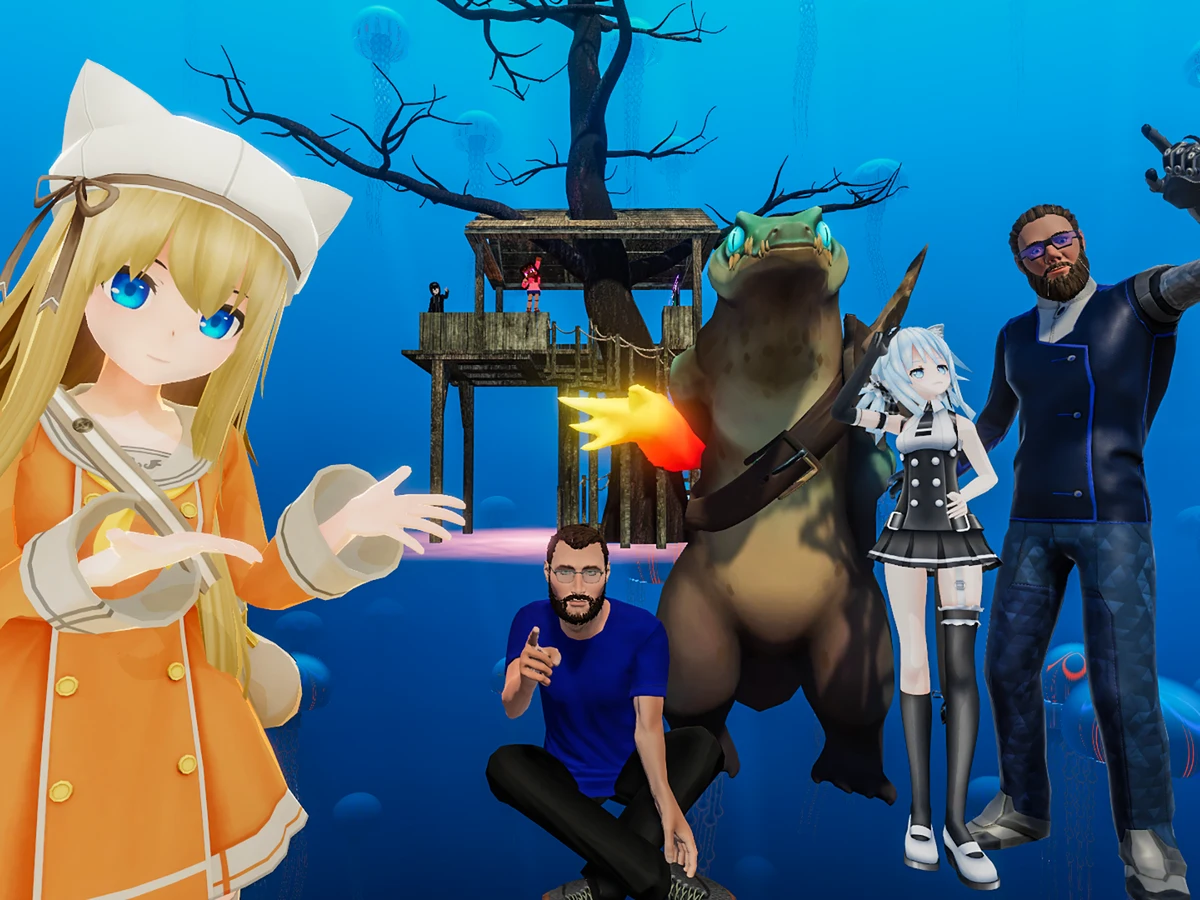
To upload one VRChat avatar for both PC and Quest, select your Windows model in the SDK's Builder, assign the Quest model as an Android override, then publish both builds under one avatar ID. If your PC version is already live, keep its blueprint ID so the Quest build joins the same avatar. These steps use SDK 3.10.6, released on 30 October 2026 for Unity 2022.3. The override controls first arrived in SDK 3.8.1.
Prepare both models in one scene
Open your avatar project through Creator Companion on Windows. You need a VRChat account at New User trust rank or higher to publish. If you play with a Steam or Meta account, link it to your VRChat account first and sign into the SDK with that VRChat account. At Visitor rank, use the SDK's local test option while you wait for upload access.
Put the prepared PC and Quest versions of the avatar in the same Unity scene. If you are adding Quest support to a live avatar, use the PC object linked to that upload as your base. Keep the core skeleton paths and the root bone's scale and rotation identical across the two models. Use a Quest-ready model for the Android target, with mobile-compatible materials. If Android is missing from the SDK's platform choices, open Unity Hub > Installs, find your project's editor and use Add modules to install Android Build Support. Add iOS Build Support there if you plan to publish for iPhone or iPad.
Assign the Quest version to Android
In Unity, open VRChat SDK > Show Control Panel, sign in and open Builder. Under Selected Avatar, choose the Windows model. Open the three-dot menu beside the dropdown, choose Add per-platform override and select Android. In that row, select the Quest avatar object from your scene. VRChat saves the mapping as you set it. Select iOS in a separate row if you also have an iOS-ready version and want to publish it.
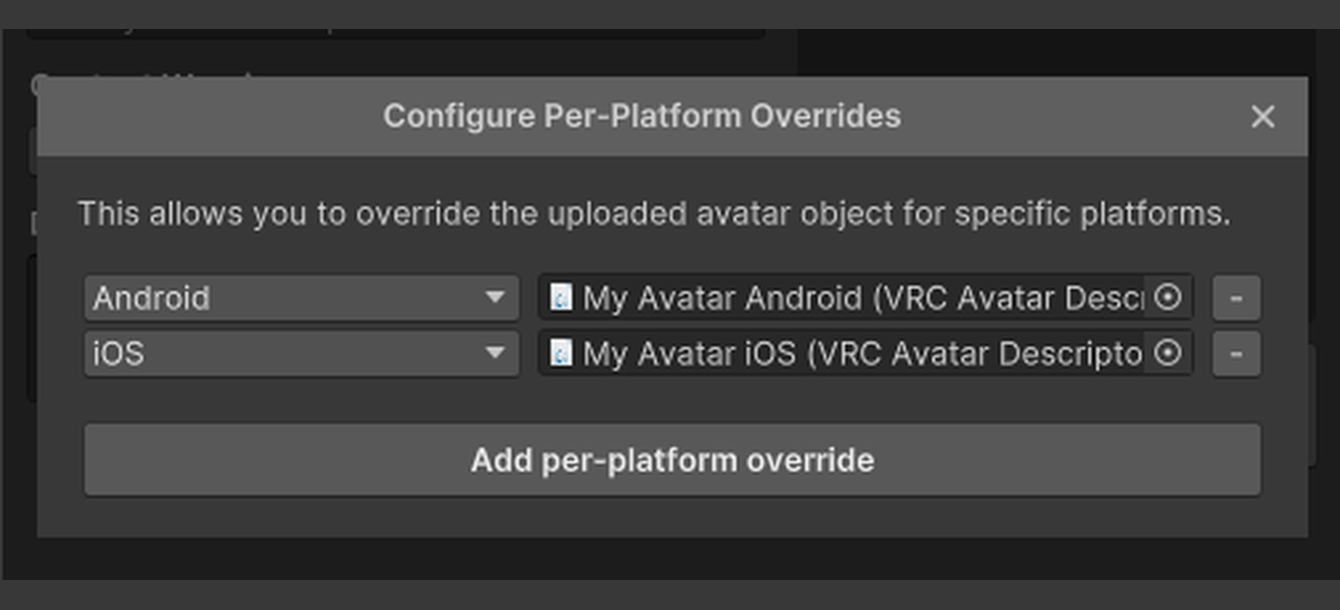
Keep the Windows model selected in Builder as you move to Build. The override supplies the Quest object for Android, which also serves Android phones and tablets, PICO 4 and newer models, and HTC Vive XR Elite. Selecting both platforms alone tells the SDK where to publish. The Android override tells it which model to send.
Publish the builds and check the result
For a first upload, give the avatar a name, add a thumbnail, choose its visibility and set the relevant content warnings. Resolve any blocking errors shown in Builder. Under Build, choose Build & Publish Your Avatar Online, select Windows and Android in the platform dropdown, then click Build & Publish and confirm you have the rights to upload the avatar. Include iOS in the selection if you have prepared that build too.
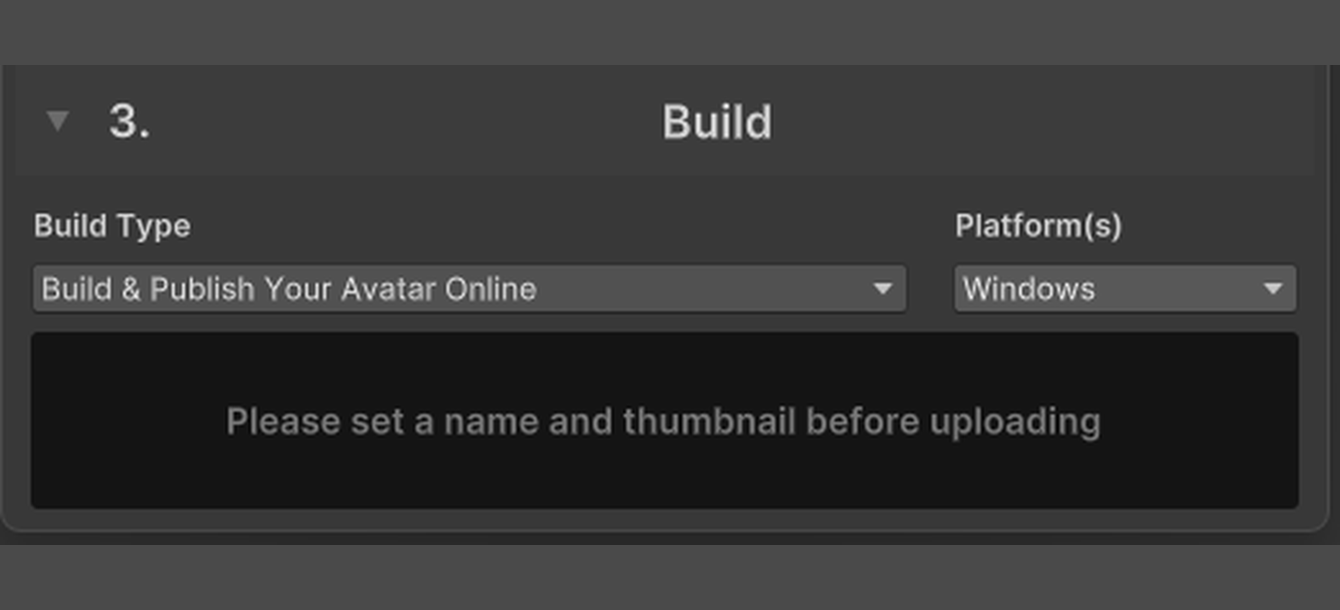
Check the upload in the SDK's Content Manager, then equip the same avatar on PC and Quest to see the model each client receives. If Quest shows a simplified impostor, check that the Android build published against the same avatar ID as Windows. If the Android build fails validation, check the Quest model's warnings before trying it again. You can select Android alone to retry that build using the override.
Add Quest support from a separate project
If your Quest model lives in another Unity project, copy the existing PC avatar's blueprint ID from Content Manager. In the Quest project, open the avatar's Pipeline Manager and attach that ID. If the Quest object already has a different ID attached, detach it before pasting the PC ID. With the Quest object selected, publish to Android. Use the same avatar entry to check the result on both clients.
Keep a copy of your working Unity scene before updating a live avatar. If you send the wrong model to a platform, restore that model or its override in your project, then publish only the affected platform under the existing ID. Check it again on the device that was showing the wrong version.
Sources
Where this story comes from, and where you can check it.
Official sources
- VRChat CreationPer-Platform Avatar Overrides ↗
- VRChat CreationCross-Platform Setup ↗
- VRChat CreationCreating Your First Avatar ↗
- VRChat CreationCurrent Unity Version ↗
- VRChat CreationPlatforms ↗
- VRChat CreationRelease 3.10.6 ↗
- VRChat CreationRelease 3.8.1 ↗