
Turn on Vanguard Pre-Check from the Windows system tray to run Vanguard on demand in League of Legends. Your PC needs Windows 11 version 25H2 or later and has to pass Riot's security checks. Once you complete Pre-Check, Vanguard starts when you launch a Riot game and shuts down after you finish playing. Riot introduced the mode on 24 June 2026. On a PC that already opens League normally, you can keep the standard startup mode if you prefer.
Check your PC in the Vanguard tray
Open the red Riot Vanguard icon by the Windows clock. If it's hidden, expand the tray first. On the Vanguard Pre-Check welcome screen, select Start and follow the Continue prompts. If you reach the requirements list as soon as you open Vanguard, start there. The list checks your Windows version, UEFI Secure Boot, TPM 2.0, VBS, HVCI and IOMMU. Green ticks tell you which requirements your PC already meets.
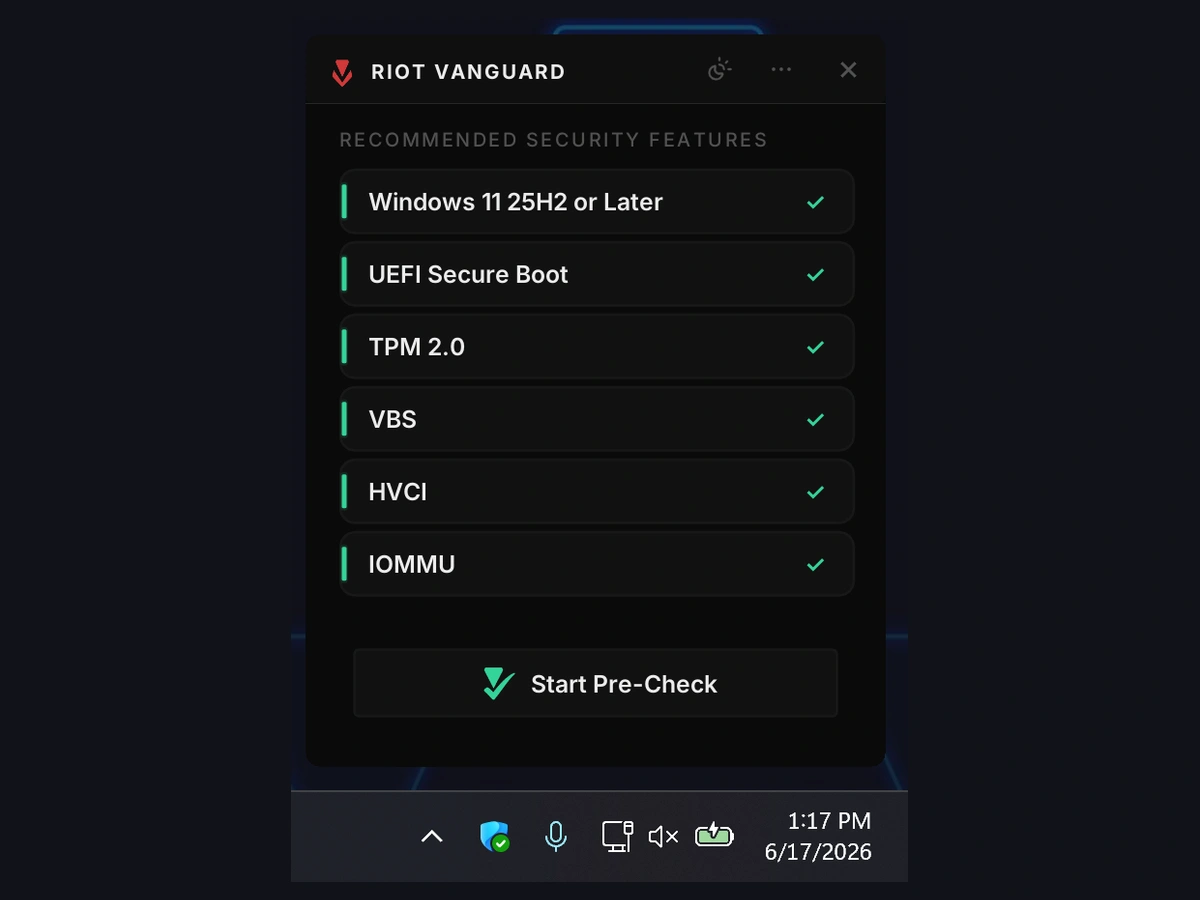
If the Windows version is flagged, open Settings, then System, then About and check the version under Windows specifications. Windows 10 and releases before Windows 11 25H2 use the standard Vanguard startup mode. If your PC supports the required Windows release, check Settings, then Windows Update for the upgrade. Restart after installing it, then reopen the tray checklist before changing any other settings.
Address the requirement Vanguard flags
Select the flagged item in the Vanguard checklist to open Riot's instructions for it. If it points to HVCI, look for Memory integrity under Windows Security, Device security, Core isolation details. If Windows lists an incompatible driver when you try to switch it on, check for an updated driver from Windows Update or the device manufacturer. Restart after enabling Memory integrity and check the tray again.
For Secure Boot, TPM 2.0 or IOMMU, follow the instructions for your exact PC or motherboard model. Before changing firmware settings on a drive protected by BitLocker, make sure you can retrieve its recovery key. A firmware change can prompt for it on the next boot. If a setting is unavailable or the manufacturer says your configuration cannot use it, keep Vanguard's normal startup mode and leave the firmware as it is.
Run Pre-Check and try League
When the checklist shows green ticks, select Start Pre-Check and wait for Pre-Check Complete. Open League through the Riot Client and try the Practice Tool so you can check that a game loads before queuing.
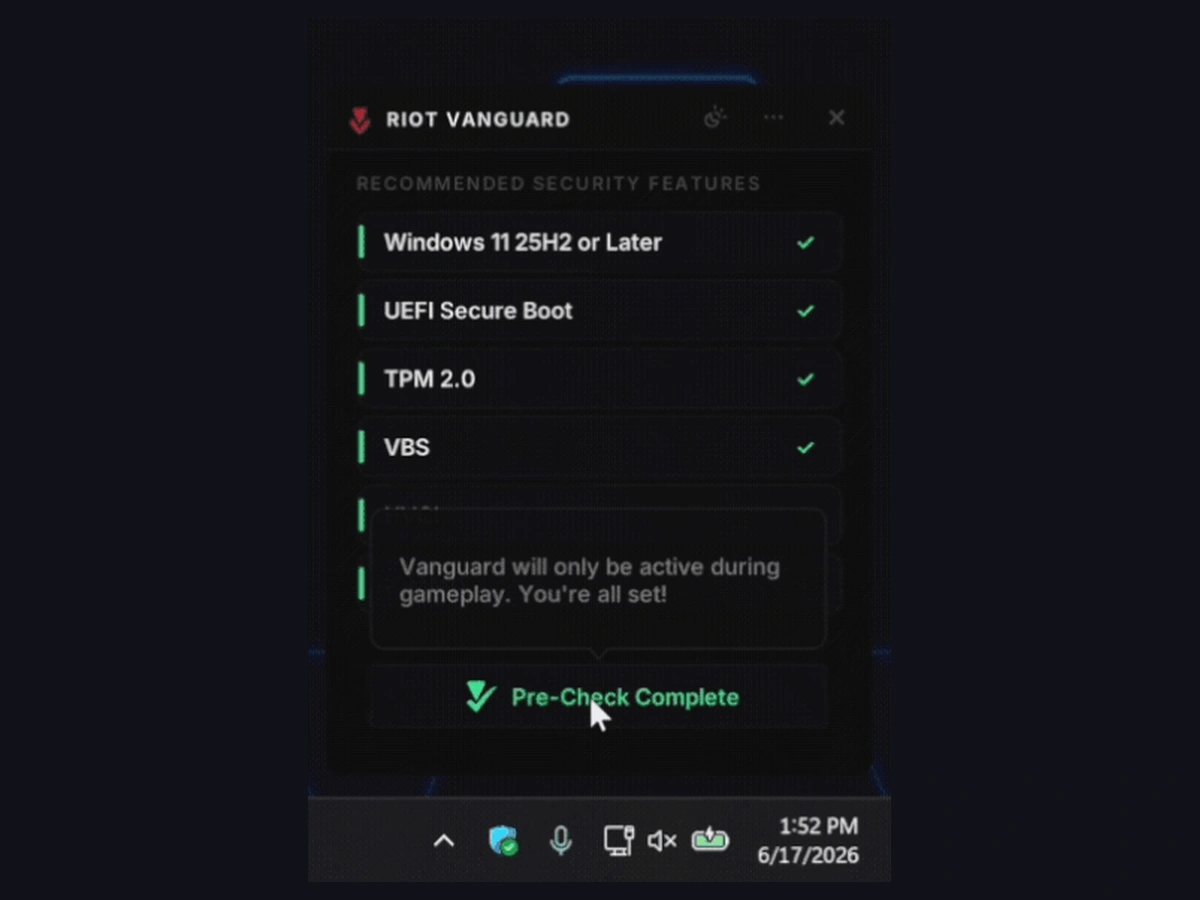
To check when Vanguard stops, close League and any other Riot game you have open. The Windows Vanguard setting also applies to VALORANT on the same PC, so an open VALORANT session can keep Vanguard running. After you close your Riot games, expect Vanguard to shut down and its tray icon to disappear. It starts again with your next game launch.
Keep standard startup if the check fails
If Pre-Check fails and League was already working, choose Opt-out when the setup prompt offers it. If the game stops opening after you completed Pre-Check, you can restore Vanguard's default startup by reinstalling Vanguard alone. Close League and exit the Riot Client. In Windows, search for Add or remove programs and uninstall Riot Vanguard from the app list. Restart, then open League through the Riot Client to reinstall Vanguard. Restart again if the client asks, and try opening a game with the default settings.
If League still blocks launch, use the exact VAN message to choose your next step. A VAN: RESTRICTION message lists what Vanguard needs before the game can launch. Follow the requirement in that message. If the same error returns, send Riot Player Support the code and a screenshot of the message. Once League launches, you can check the separate requirements for unlocking ranked play if the queue is still locked.
Sources
Where this story comes from, and where you can check it.
Official sources
- Riot Games SupportVanguard Pre-Check ↗
- Riot GamesIncoming: Vanguard On-Demand ↗
- Riot Games SupportEnable Memory Integrity (HVCI/VBS) ↗
- Riot Games SupportUninstall and Disable Vanguard ↗
- Riot Games SupportError "Failed to Launch: Something unusual happened..." ↗
- Riot Games SupportError VAN: RESTRICTION ↗
- Microsoft SupportBitLocker overview ↗